



iSulad 简版教程 | 安装与镜像构建
发表于 2025/12/09
0
原文链接:https://blog.csdn.net/a555809067/article/details/144157583
安装并配置 iSulad
输入以下命令,安装 iSulad:
[root@localhost ~]# yum install -y iSulad安装完 iSulad 后,输入启动 iSulad:
[root@localhost ~]# systemctl start isulad然后修改配置文件(这样才能在后续创建镜像时拉取到镜像):
cp /etc/isulad/daemon.json /etc/isulad/daemon.json.originvim /etc/isulad/daemon.json打开 json 配置,将 registry-mirrors 项添加镜像库 "hub.oepkgs.net" ,具体如下(不要忘记最后的逗号):
"registry-mirrors": ["hub.oepkgs.net"],修改完后,先按 Esc 退出编辑模式,再输入 :wq 保存。
输入以下重新启动 iSulad:
systemctl restart isulad以上操作不需要专门设置文件,也就是不需要在自创的目录中使用,直接在 localhost 操作即可。后面如果没有特意声明,也都是在 localhost 下即可使用。
测试可否拉取镜像:
[root@localhost ~]# isula pull openeuler/openeuler:24.09诸位可根据自己下载的版本修改。
输入以下,查看已经拉取的镜像:
[root@localhost]# isula images
REPOSITORY                      TAG        IMAGE ID            CREATED              SIZE
openeuler/openeuler             24.09      34f56f4bfb72        2024-11-30 12:27:37  506.641MB
创建容器
输入以下,创建 openEuler 容器:
[root@localhost ~]# isula create -it openeuler/openeuler:24.09输入以上代码后,会出现该容器的 id(也就是下图的 name):

启动容器(这里的数字可以缩小到两位,系统会自动匹配容器 id):
isula start 5753进入容器:
[root@localhost ~]# isula exec -it 5753 /bin/bash查看容器相关数据:
[root@57538020c8d5 /]# cat /etc/os-release安装 isula-build
输入以下:
yum --enablerepo update install -y isula-build查看状态:
# systemctl status isula-build.service安装 docker-runc
在 24.09 版本中,安装 docker-runc 不需要带 docker-,如下。输入 docker-runc 会显示没有 docker-runc 的匹配项,在 20.09 版本应该可以输入 docker-runc。runc 将保障后面的.sh 文件的运行:
yum install -y runc构建自己的镜像
首先需要创造构建目录:
# mkdir –p /home/test/ && cd /home/test/以下操作均需要在 test 目录中完成。
构建 Dockerfile 文件:
[root@localhost test]# vim Dockerfile进入 insert 状态后输入以下(在这一步注意,如果你之前拉取镜像的时候出错,后面构建镜像时会在 step2 出错,而且注意在镜像名前加上 hub.oepkgs.net,否则也会报错):
FROM hub.oepkgs.net/openeuler/openeuler:24.09
COPY hello.sh /usr/bin/
CMD ["sh", "-c", "/usr/bin/hello.sh"]
按 Esc 退出编辑模式,再输入:wq 保存。
构建 hello.sh 脚本:
[root@localhost test]# vim hello.sh输入以下:
#!/bin/bash
echo
echo "hello, isula-build!"
退出后修改 hello.sh 的属性:
[root@localhost test]# chmod +x hello.sh查看是否完成文件的构建:
[root@localhost test]# ls -l输入,构建镜像,结果如下:
[root@localhost test]# isula-build ctr-img build -f ./Dockerfile -o isulad:hello-isula-build:v0.1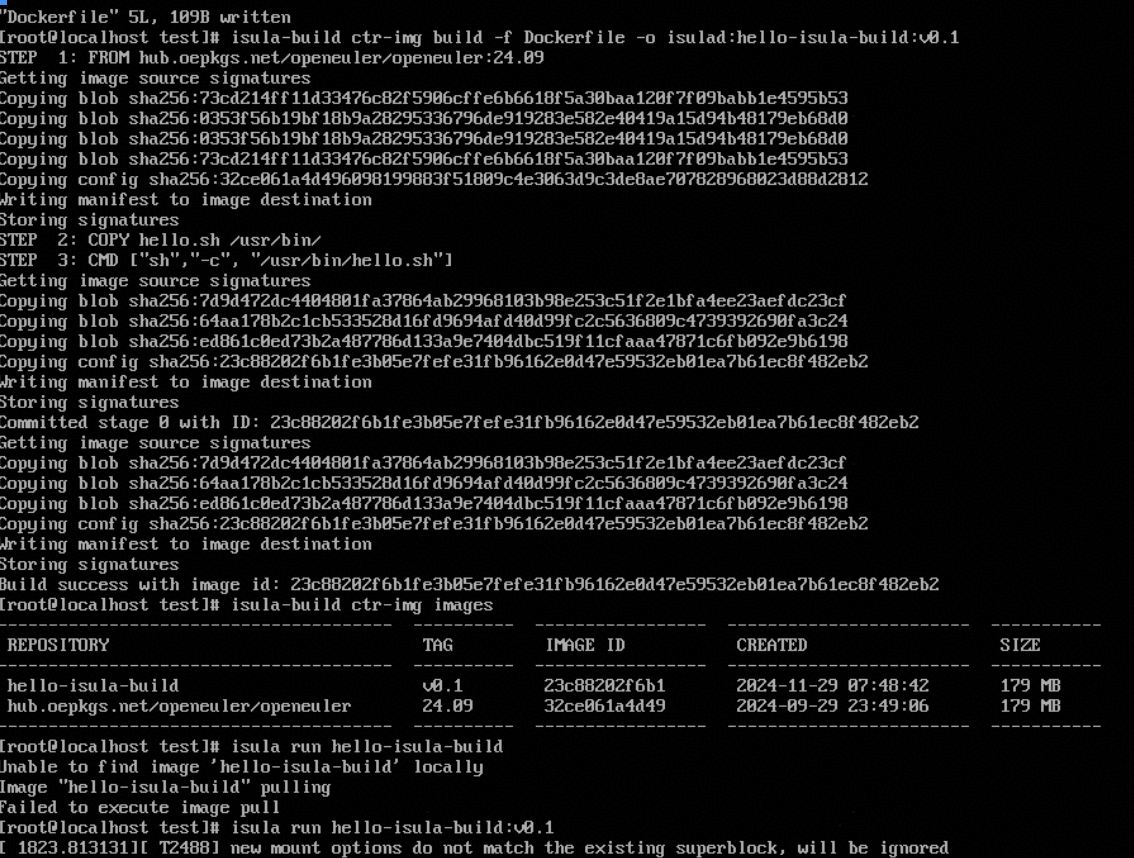
输入以下,查看创建的镜像如上:
[root@localhost test]# isula-build ctr-img images构建完成,下面运行构建好的镜像。结果如上:
[root@localhost test]# isula run hello-isula-build:v0.1