AgentBrowser(浏览器)的沙箱内执行
- 制作沙箱模板。
- 进入容器,安装agent-browser所需组件。
- 进入容器。
docker exec -it search-image bash
- 安装以下组件。
dnf install -y nodejs
npm install -g agent-browser
npx playwright install
npx playwright install chromium
dnf install -y nss nspr atk at-spi2-atk gtk3 alsa-lib libgbm libdrm mesa-libEGL
- 进入容器。
- 安装E2B沙箱必备组件,并制作镜像。
- 使用yum命令安装以下组件。
yum install -y wget systemd systemd-sysv openssh-server sudo chrony linuxptp socat curl iputils bind-utils iproute nc tcpdump passwd && yum clean all && rm -rf /var/cache/yum /var/tmp/* /tmp/*
- 使用wget命令安装以下组件。
wget -O /usr/local/bin/websocat https://github.com/vi/websocat/releases/latest/download/websocat.aarch64-unknown-linux-musl && chmod a+x /usr/local/bin/websocat && websocat --version
- 执行exit退出容器,并制作镜像。
docker commit <容器名> <镜像名>:<版本号>
- 使用yum命令安装以下组件。
- 创建容器,进入龙虾,绑定制作的沙箱模板。可参考Python代码的沙箱内执行及E2B沙箱服务部署(可选)。
- agent-browser原生SKILL(即https://clawhub.ai/matrixy/agent-browser-clawdbot#files)不考虑E2B沙箱环境,需修改SKILL.md。此任务由Agent自动执行,修改结果为:
--- name: Agent Browser (local-exec / E2B Sandbox) description: Headless browser automation via agent-browser CLI inside E2B sandbox using local-exec. Chrome path and launch args are pre-configured. read_when: - Automating web interactions inside E2B sandbox - Extracting structured data from pages via local-exec - Filling forms programmatically in sandboxed browser - Testing web UIs via local-exec tool metadata: {"clawdbot":{"emoji":"","requires":{"bins":["agent-browser","sudo"]}}} allowed-tools: Bash(agent-browser:*) --- # Browser Automation with agent-browser (E2B Sandbox) ## Execution Environment All `agent-browser` commands run inside the **E2B cloud sandbox** via `local-exec` (kind: bash). **Key constraints:** - Chrome is installed by Playwright at: `/root/.cache/ms-playwright/chromium-1223/chrome-linux/chrome` - Chrome requires `sudo` to run (sandbox user has no permission to `/root/.cache`) - Chrome **must** be launched with: `--no-sandbox --disable-gpu --disable-dev-shm-usage` - Must run in **headless** mode: `--headed false` - Always close existing daemon before starting with new options: `sudo agent-browser close --all` **Command template:** ```bash sudo agent-browser close --all 2>&1 && \ sudo agent-browser \ --executable-path /root/.cache/ms-playwright/chromium-1223/chrome-linux/chrome \ --args "--no-sandbox,--disable-gpu,--disable-dev-shm-usage" \ --headed false \ <command> <args> ``` ## Quick Start ### Via local-exec (tool call) ``` local-exec(kind="bash", command="sudo agent-browser close --all 2>&1 && sudo agent-browser --executable-path /root/.cache/ms-playwright/chromium-1223/chrome-linux/chrome --args \"--no-sandbox,--disable-gpu,--disable-dev-shm-usage\" --headed false open https://www.example.com 2>&1") ``` ### Core workflow 1. **Close daemon + navigate**: `sudo agent-browser close --all && sudo agent-browser --executable-path <path> --args "<chrome-args>" --headed false open <url>` 2. **Snapshot**: `sudo agent-browser snapshot -i` (returns elements with refs like `@e1`, `@e2`) 3. **Interact** using refs from the snapshot 4. **Re-snapshot** after navigation or significant DOM changes ## Commands ### Navigation ```bash sudo agent-browser close --all && sudo agent-browser --executable-path /root/.cache/ms-playwright/chromium-1223/chrome-linux/chrome --args "--no-sandbox,--disable-gpu,--disable-dev-shm-usage" --headed false open <url> sudo agent-browser back sudo agent-browser forward sudo agent-browser reload sudo agent-browser close --all ``` ### Snapshot (page analysis) ```bash sudo agent-browser snapshot # Full accessibility tree sudo agent-browser snapshot -i # Interactive elements only (recommended) sudo agent-browser snapshot -c # Compact output sudo agent-browser snapshot -d 3 # Limit depth to 3 sudo agent-browser snapshot -s "#main" # Scope to CSS selector ``` ### Interactions (use @refs from snapshot) ```bash sudo agent-browser click @e1 # Click sudo agent-browser dblclick @e1 # Double-click sudo agent-browser focus @e1 # Focus element sudo agent-browser fill @e2 "text" # Clear and type sudo agent-browser type @e2 "text" # Type without clearing sudo agent-browser press Enter # Press key sudo agent-browser press Control+a # Key combination sudo agent-browser hover @e1 # Hover sudo agent-browser check @e1 # Check checkbox sudo agent-browser uncheck @e1 # Uncheck checkbox sudo agent-browser select @e1 "value" # Select dropdown sudo agent-browser scroll down 500 # Scroll page sudo agent-browser scrollintoview @e1 # Scroll element into view ``` ### Get information ```bash sudo agent-browser get text @e1 # Get element text sudo agent-browser get html @e1 # Get innerHTML sudo agent-browser get value @e1 # Get input value sudo agent-browser get attr @e1 href # Get attribute sudo agent-browser get title # Get page title sudo agent-browser get url # Get current URL sudo agent-browser get count ".item" # Count matching elements sudo agent-browser get box @e1 # Get bounding box ``` ### Check state ```bash sudo agent-browser is visible @e1 # Check if visible sudo agent-browser is enabled @e1 # Check if enabled sudo agent-browser is checked @e1 # Check if checked ``` ### Screenshots & PDF ```bash sudo agent-browser screenshot # Screenshot to stdout sudo agent-browser screenshot path.png # Save to file sudo agent-browser screenshot --full # Full page sudo agent-browser pdf output.pdf # Save as PDF ``` ### Wait ```bash sudo agent-browser wait @e1 # Wait for element sudo agent-browser wait 2000 # Wait milliseconds sudo agent-browser wait --text "Success" # Wait for text sudo agent-browser wait --url "/dashboard" # Wait for URL pattern sudo agent-browser wait --load networkidle # Wait for network idle ``` ### Mouse control ```bash sudo agent-browser mouse move 100 200 # Move mouse sudo agent-browser mouse down left # Press button sudo agent-browser mouse up left # Release button sudo agent-browser mouse wheel 100 # Scroll wheel ``` ### Semantic locators (alternative to refs) ```bash sudo agent-browser find role button click --name "Submit" sudo agent-browser find text "Sign In" click sudo agent-browser find label "Email" fill "user@test.com" sudo agent-browser find first ".item" click sudo agent-browser find nth 2 "a" text ``` ### Browser settings ```bash sudo agent-browser set viewport 1920 1080 # Set viewport size sudo agent-browser set device "iPhone 14" # Emulate device sudo agent-browser set geo 37.7749 -122.4194 # Set geolocation sudo agent-browser set offline on # Toggle offline mode sudo agent-browser set headers '{"X-Key":"v"}' # Extra HTTP headers sudo agent-browser set media dark # Emulate color scheme ``` ### Cookies & Storage ```bash sudo agent-browser cookies # Get all cookies sudo agent-browser cookies set name value # Set cookie sudo agent-browser cookies clear # Clear cookies sudo agent-browser storage local # Get all localStorage sudo agent-browser storage local key # Get specific key sudo agent-browser storage local set k v # Set value sudo agent-browser storage local clear # Clear all ``` ### Network ```bash sudo agent-browser network route <url> # Intercept requests sudo agent-browser network route <url> --abort # Block requests sudo agent-browser network route <url> --body '{}' # Mock response sudo agent-browser network unroute [url] # Remove routes sudo agent-browser network requests # View tracked requests sudo agent-browser network requests --filter api # Filter requests ``` ### Tabs ```bash sudo agent-browser tab # List tabs sudo agent-browser tab new [url] # New tab sudo agent-browser tab 2 # Switch to tab sudo agent-browser tab close # Close tab ``` ### Frames ```bash sudo agent-browser frame "#iframe" # Switch to iframe sudo agent-browser frame main # Back to main frame ``` ### JavaScript ```bash sudo agent-browser eval "document.title" # Run JavaScript ``` ### JSON output (for parsing) Add `--json` for machine-readable output: ```bash sudo agent-browser snapshot -i --json sudo agent-browser get text @e1 --json ``` ## Example: Form submission ```bash # Step 1: Navigate sudo agent-browser close --all && sudo agent-browser --executable-path /root/.cache/ms-playwright/chromium-1223/chrome-linux/chrome --args "--no-sandbox,--disable-gpu,--disable-dev-shm-usage" --headed false open https://example.com/form 2>&1 # Step 2: Snapshot to get refs sudo agent-browser snapshot -i 2>&1 # Output: textbox "Email" [ref=e1], textbox "Password" [ref=e2], button "Submit" [ref=e3] # Step 3: Fill and submit sudo agent-browser fill @e1 "user@example.com" sudo agent-browser fill @e2 "password123" sudo agent-browser click @e3 sudo agent-browser wait --load networkidle # Step 4: Check result sudo agent-browser snapshot -i 2>&1 ``` ## Troubleshooting | Symptom | Fix | |---|---| | `Chrome not found` | Add `--executable-path /root/.cache/ms-playwright/chromium-1223/chrome-linux/chrome` | | `Permission denied` | Use `sudo` — Chrome binary is under `/root/.cache` | | `Operation timed out` | Add `--args "--no-sandbox,--disable-gpu,--disable-dev-shm-usage"` and `--headed false` | | `--executable-path ignored` | Daemon already running with old config. Run `sudo agent-browser close --all` first | | Element not found | Run `snapshot -i` again — refs change after navigation | ## Notes - **Refs are stable per page load** but change on navigation. Always snapshot after navigating. - **Use `fill`** instead of `type` for input fields to clear existing text first. - **Always close daemon** before re-launching with different Chrome options. - **Command chaining** works in a single `local-exec` call via `&&`.
本SKILL.md的实际制作过程如下,仅关心如何使用agent-browser可忽略以下内容:
- 要求CLAW在沙箱环境中执行如下命令打开网页。
sudo agent-browser open www.baidu.com --executable-path /root/.cache/ms-playwright/chromium-1223/chrome-linux/chrome
验证结果是否符合预期,若执行报错,要求CLAW自主排查问题原因并解决。
- 在workspace下提供原agent-browser的SKILL.md,要求Agent对其进行修改,以支持local-exec沙箱调用场景。
- 要求Agent严格遵循SKILL,完成网页浏览任务,验证SKILL.md是否正确。若卡住,要求CLAW自主排查原因,并修改SKILL.md。
- 要求CLAW在沙箱环境中执行如下命令打开网页。
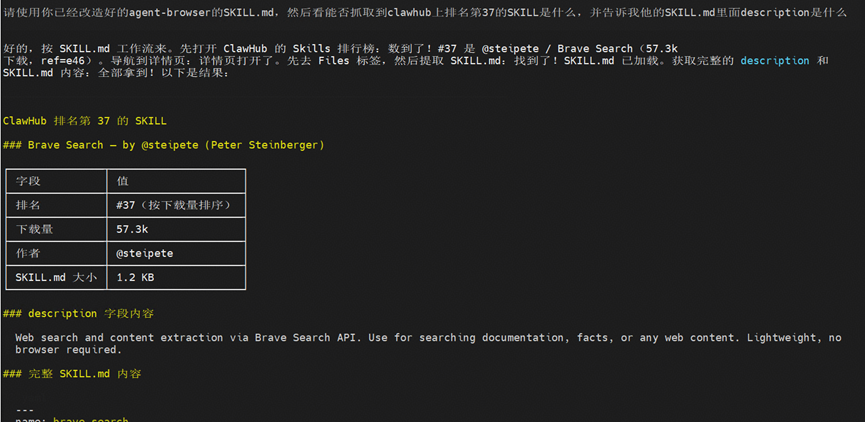
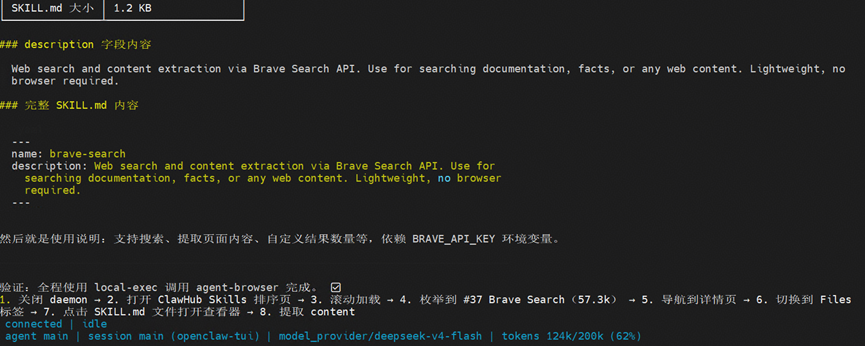
- 工具验证,告诉龙虾“请使用你已经改好的agent-browser的SKILL.md,然后看能否抓取clawhub上排名第37的SKILL是什么,并告诉我他的SKILL.md里面description是什么”。