Maintaining the Feature
You can use the Computing ToolKit to manage servers running the Confidential Computing TEE Kit. It streamlines operations such as log collection, TEE parameter configuration, license file import, and firmware upgrades.
1 describes how to obtain the Computing ToolKit. For details about how to use the Computing ToolKit, see the Computing ToolKit 25.1.RC1 User Guide.
Installing the Computing ToolKit
After obtaining the required software package, install it by following the "Installing the Computing ToolKit" section in the Computing ToolKit 26.0.RC1 User Guide.
Collecting Logs
Perform the following steps to collect TEE logs on servers:
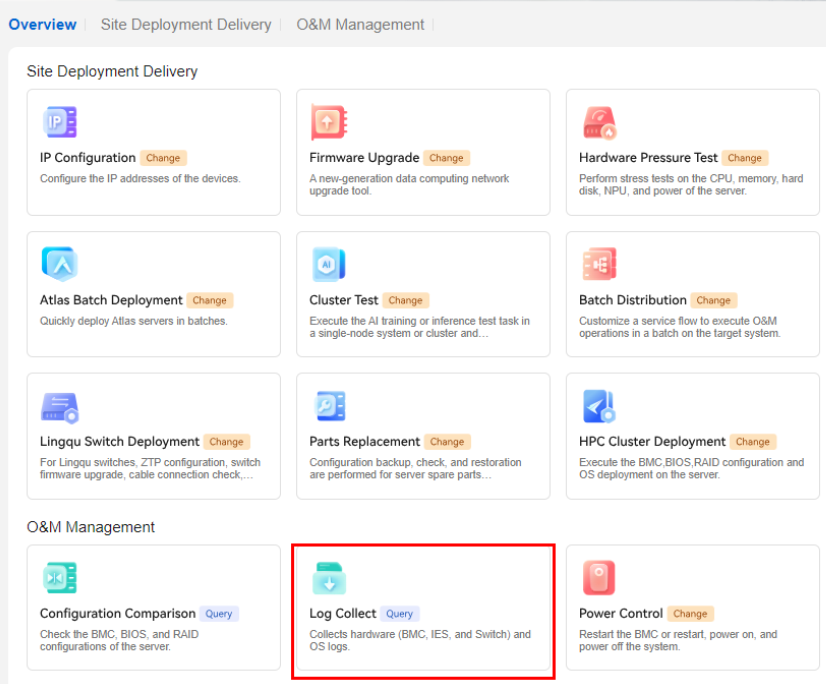
- Enable the log collection module of the Computing ToolKit.
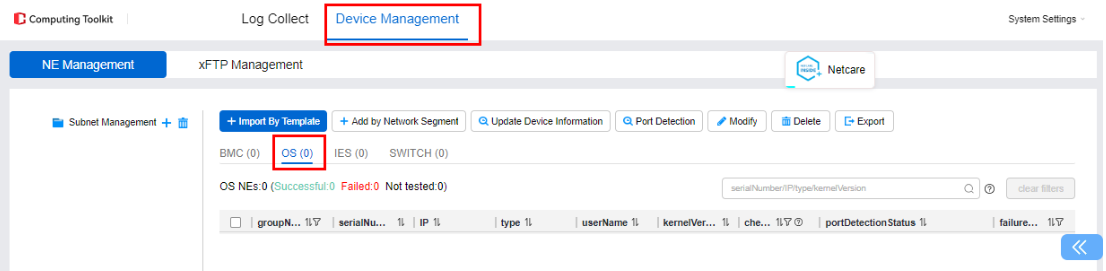
- Click Device Management, select OS, and add the servers whose information you want to collect.
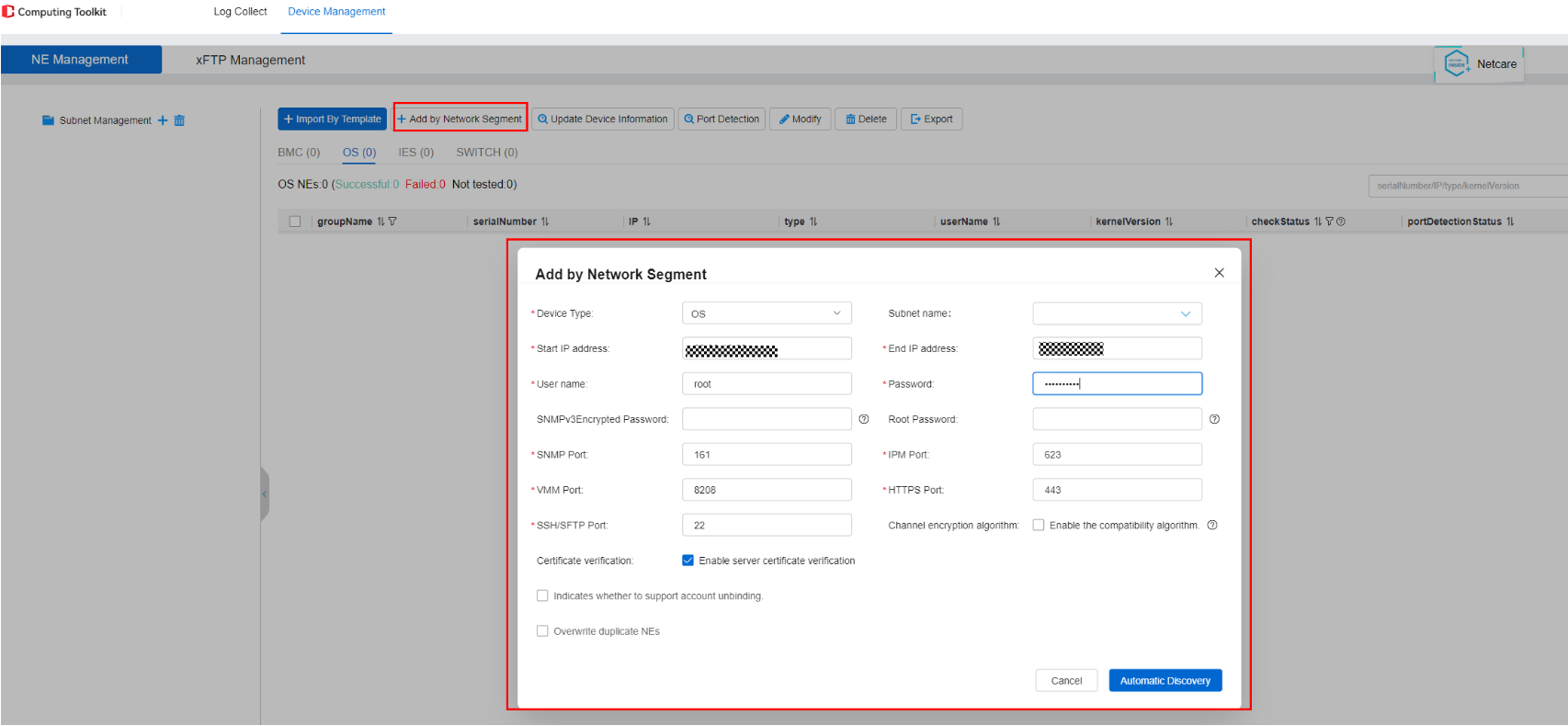
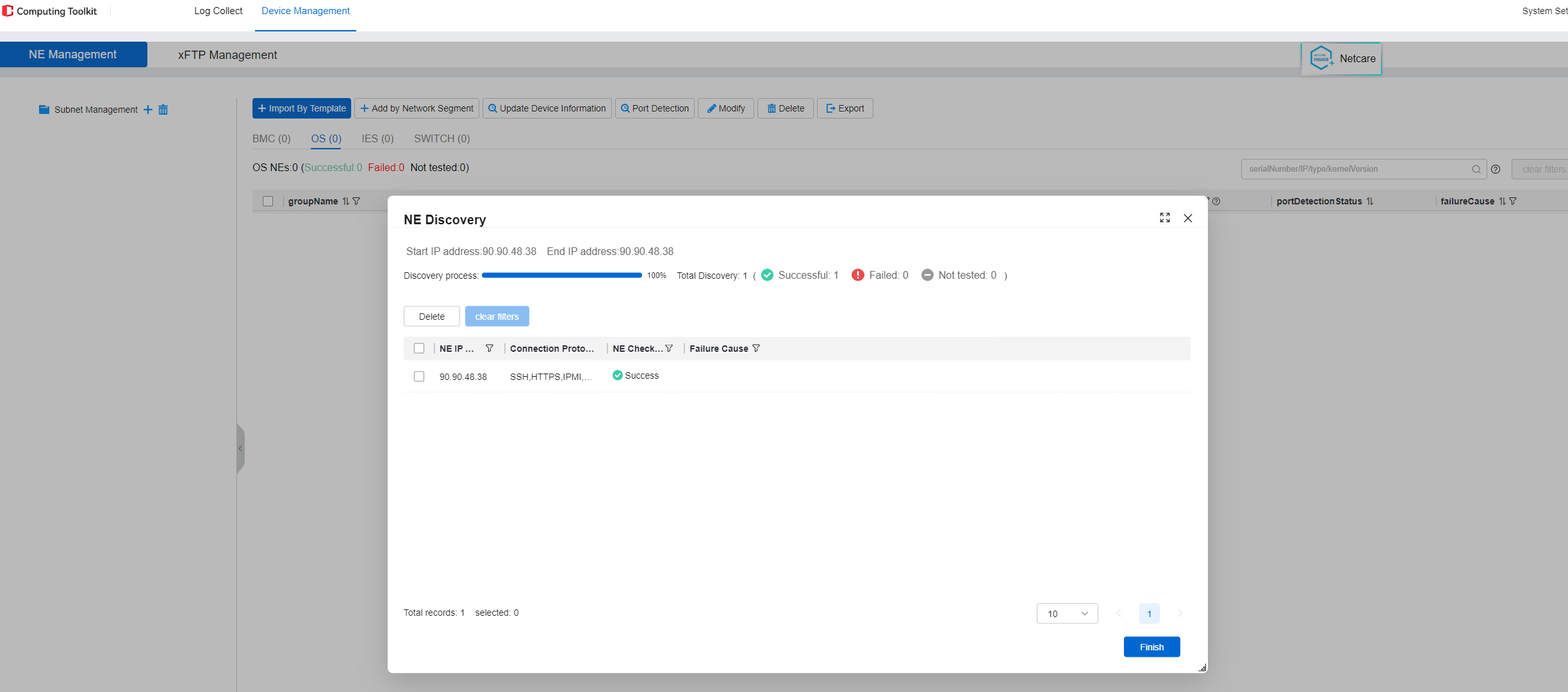
- Click Add by Network Segment, enter the start IP address and user name of the target server OS, and click Automatic Discovery.
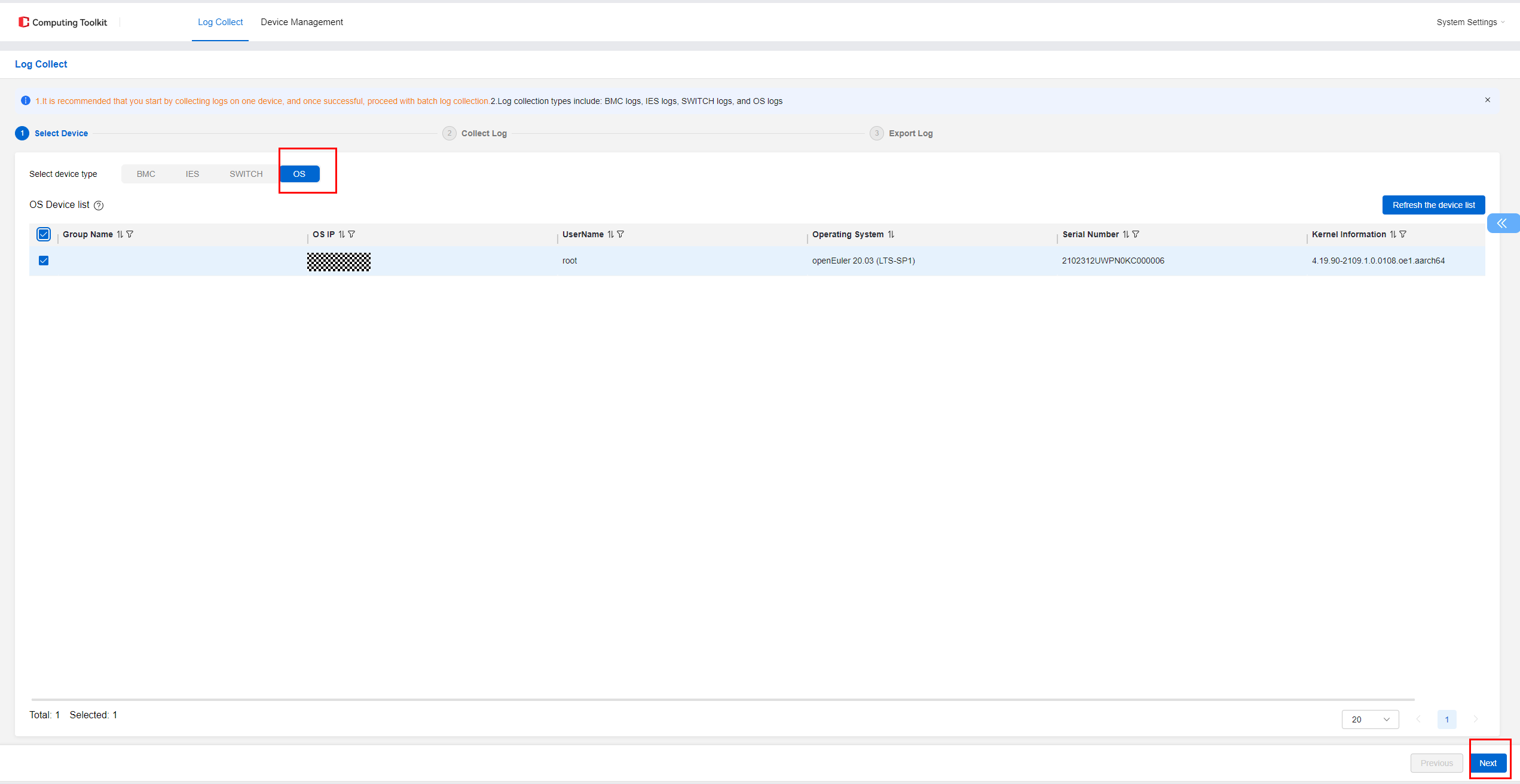
- Click Log Collection. Select OS for the device type, select the servers whose logs you want to collect, and click Next.
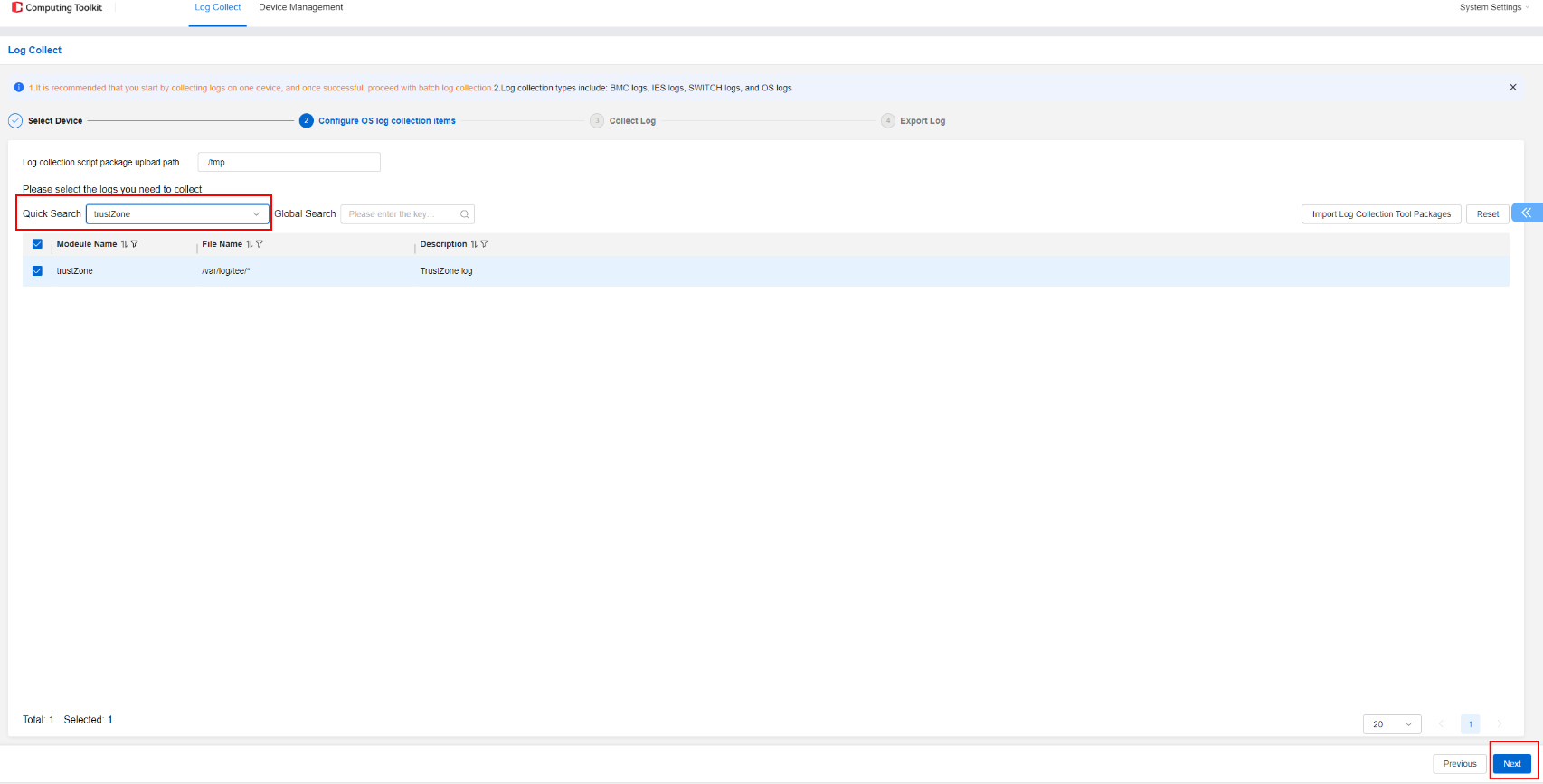
- Select TrustZone for Quick Search, select the TrustZone log module, and click Next.
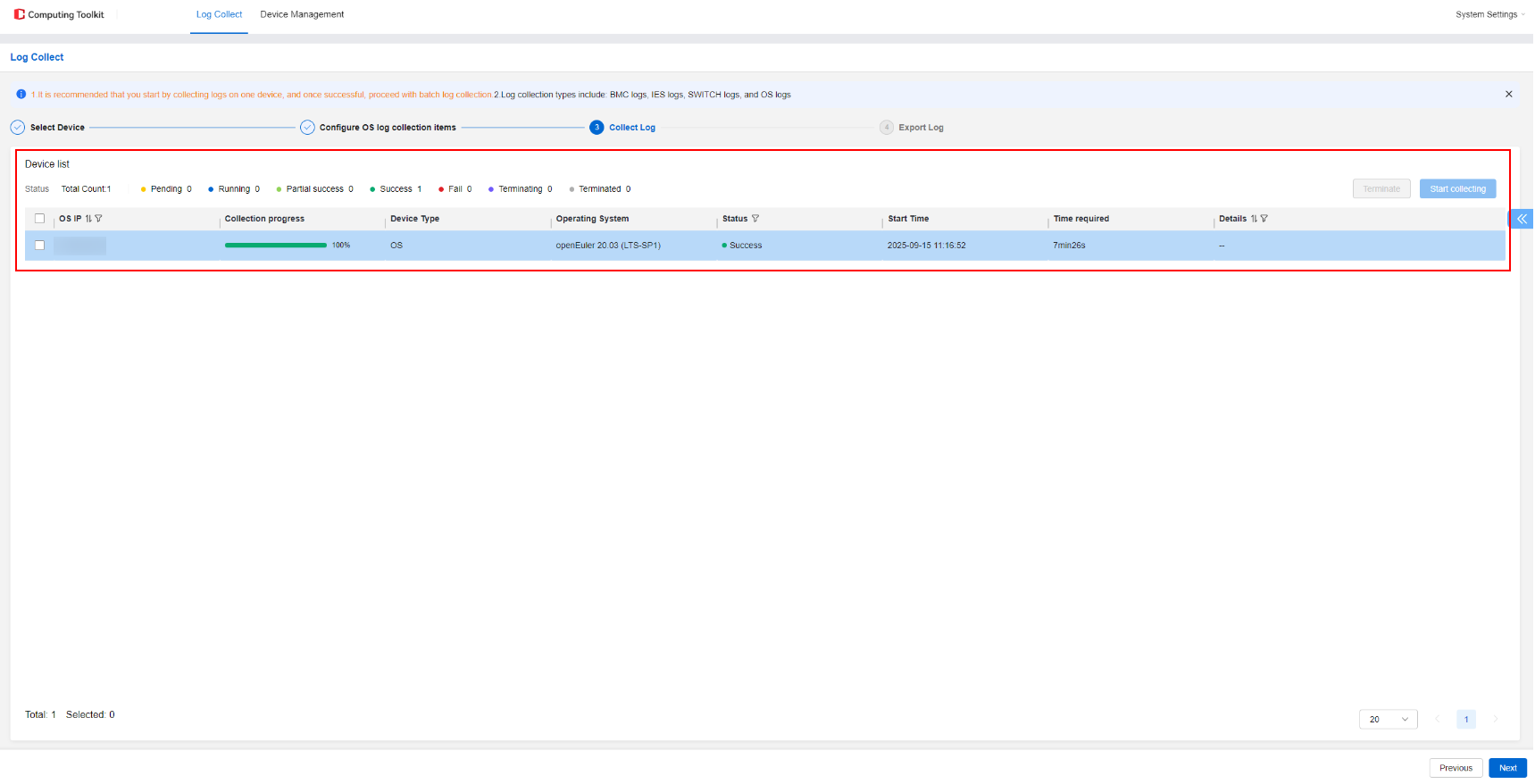
- After you click Next, the tool automatically starts to collect logs. Wait until the log collection is complete.
Setting TEE Parameters
Perform the following steps to set the TEE configuration items in the server BIOS:
- Click the One-Click Deployment function module of the Computing ToolKit.
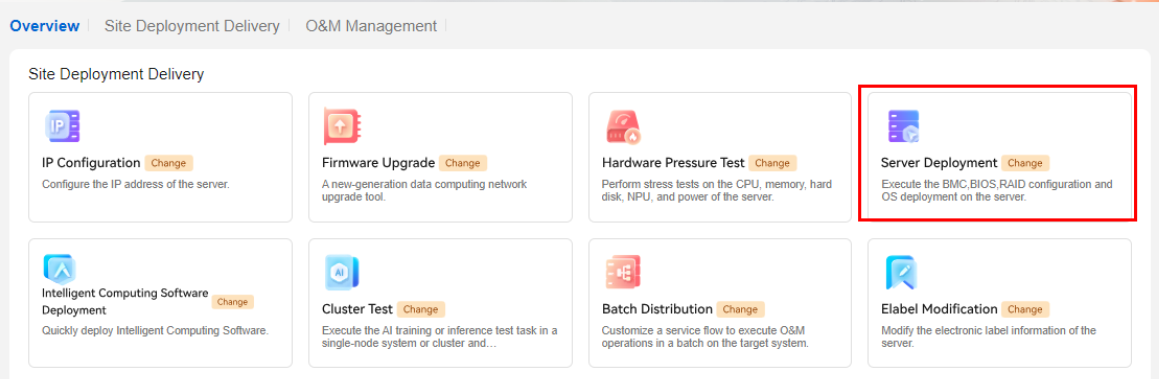
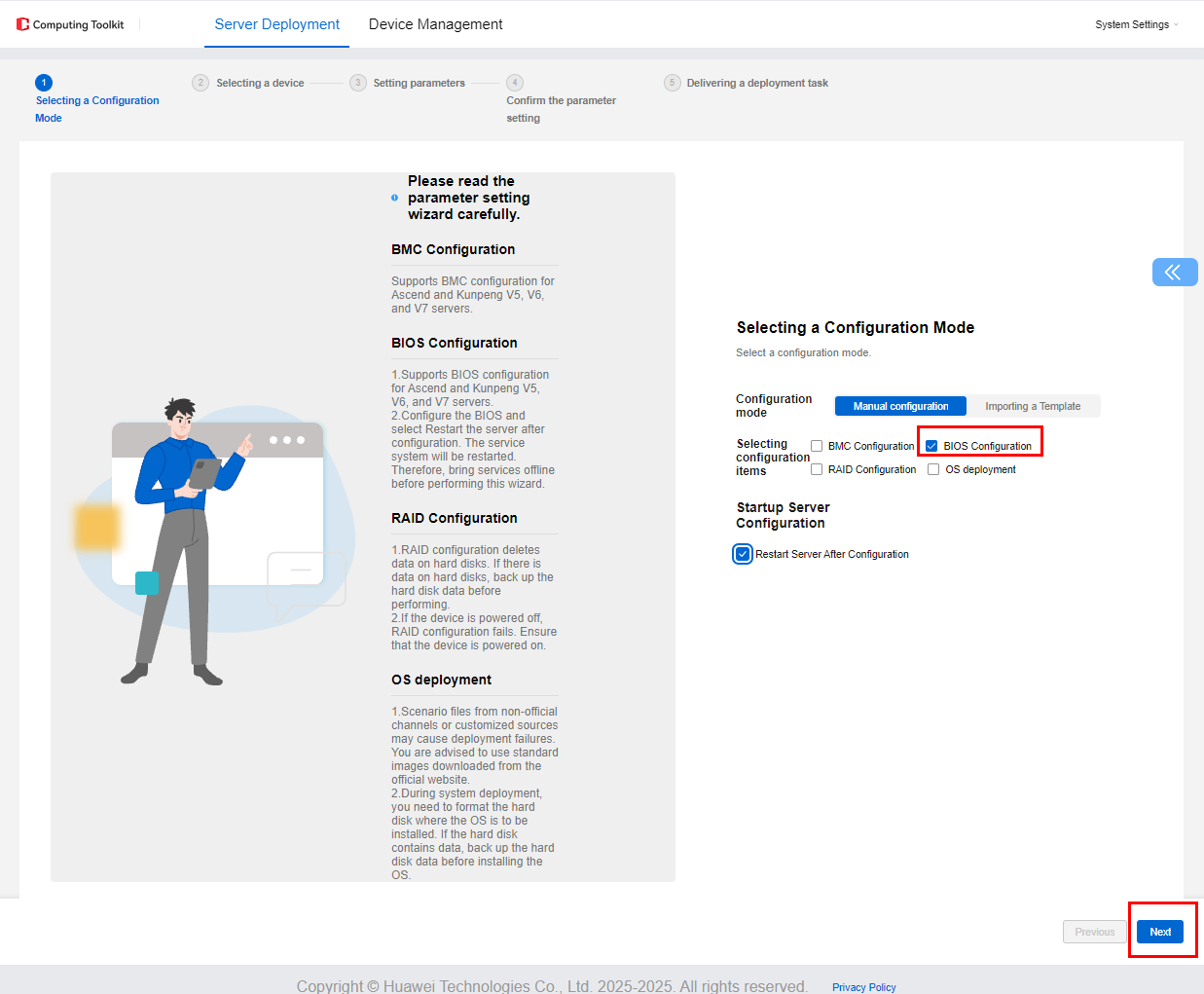
- Select BIOS Configuration under Manual configuration, select Restart Server After Configuration, and click Next.
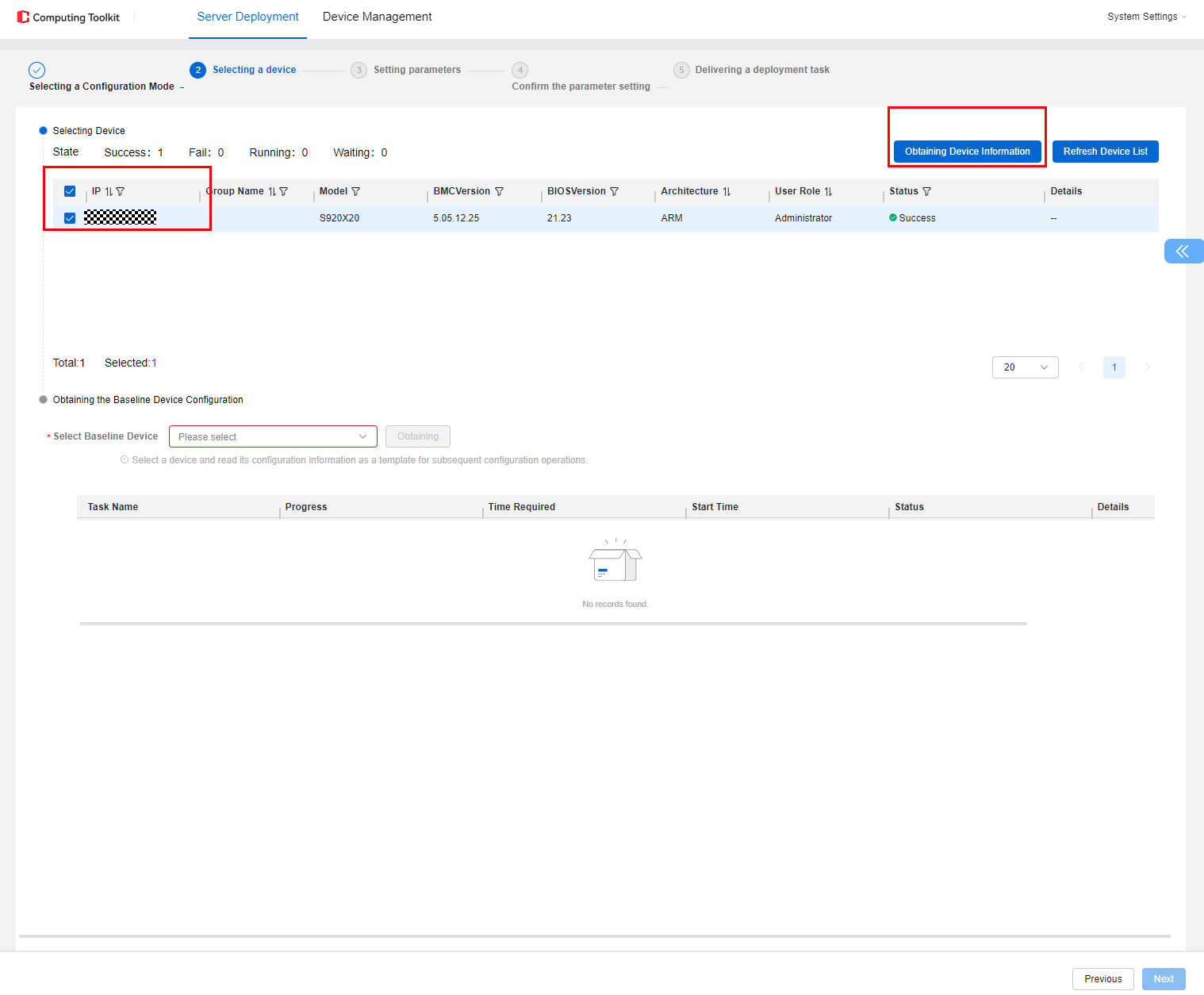
- Select the servers whose TEE parameters need to be modified and then click Get Device Info.
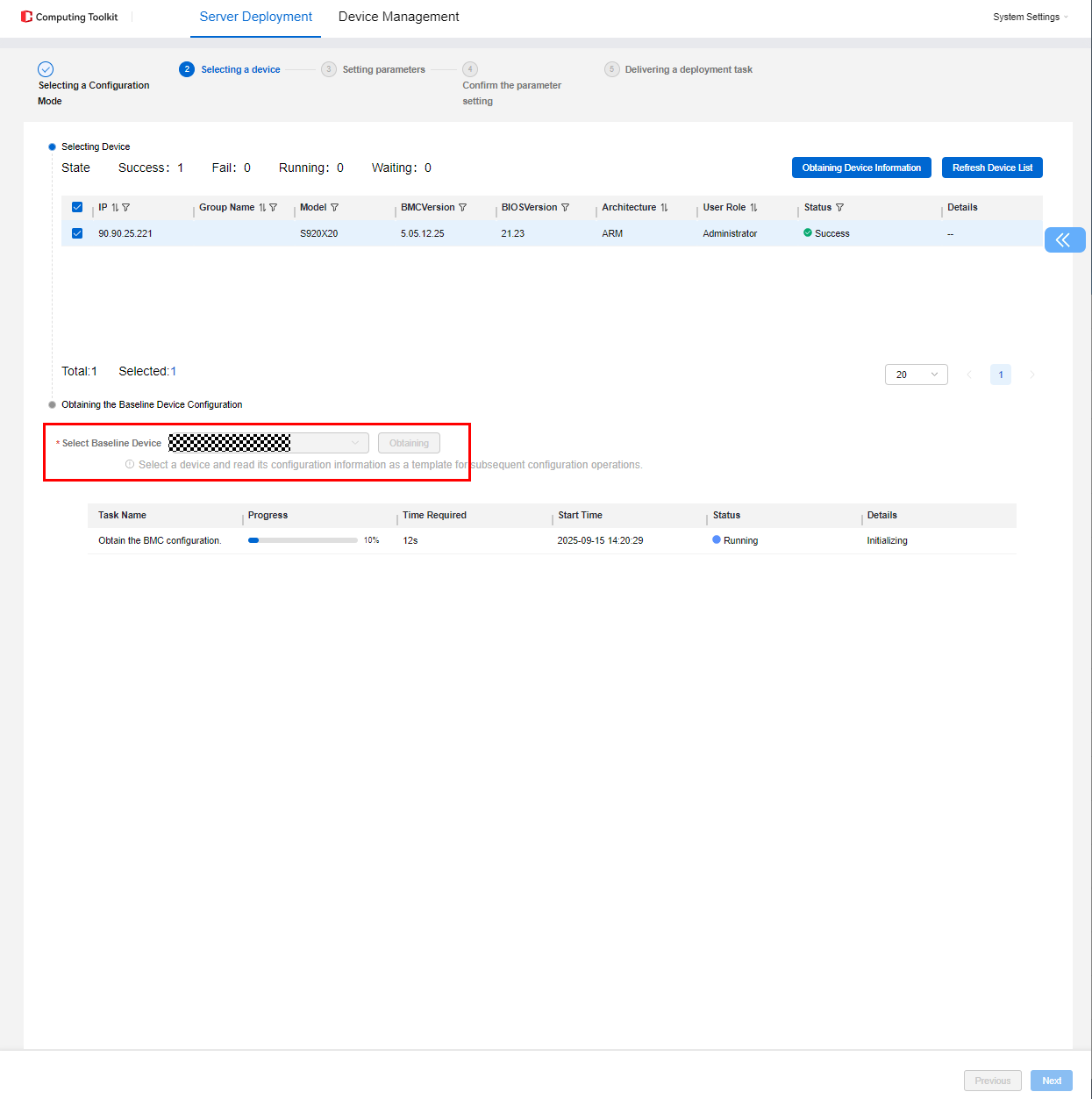
- Select a reference device and click Obtain. After the BIOS configuration is obtained, click Next.
 During batch device configuration, ensure that the selected configuration items have the same device version.
- If you select BMC Configuration, ensure that the BMC versions of the selected devices are the same.
- If you select BIOS Configuration, ensure that the BIOS versions of the selected devices are the same.
- If you select OS Configuration, ensure that the SP versions of the selected devices are the same.
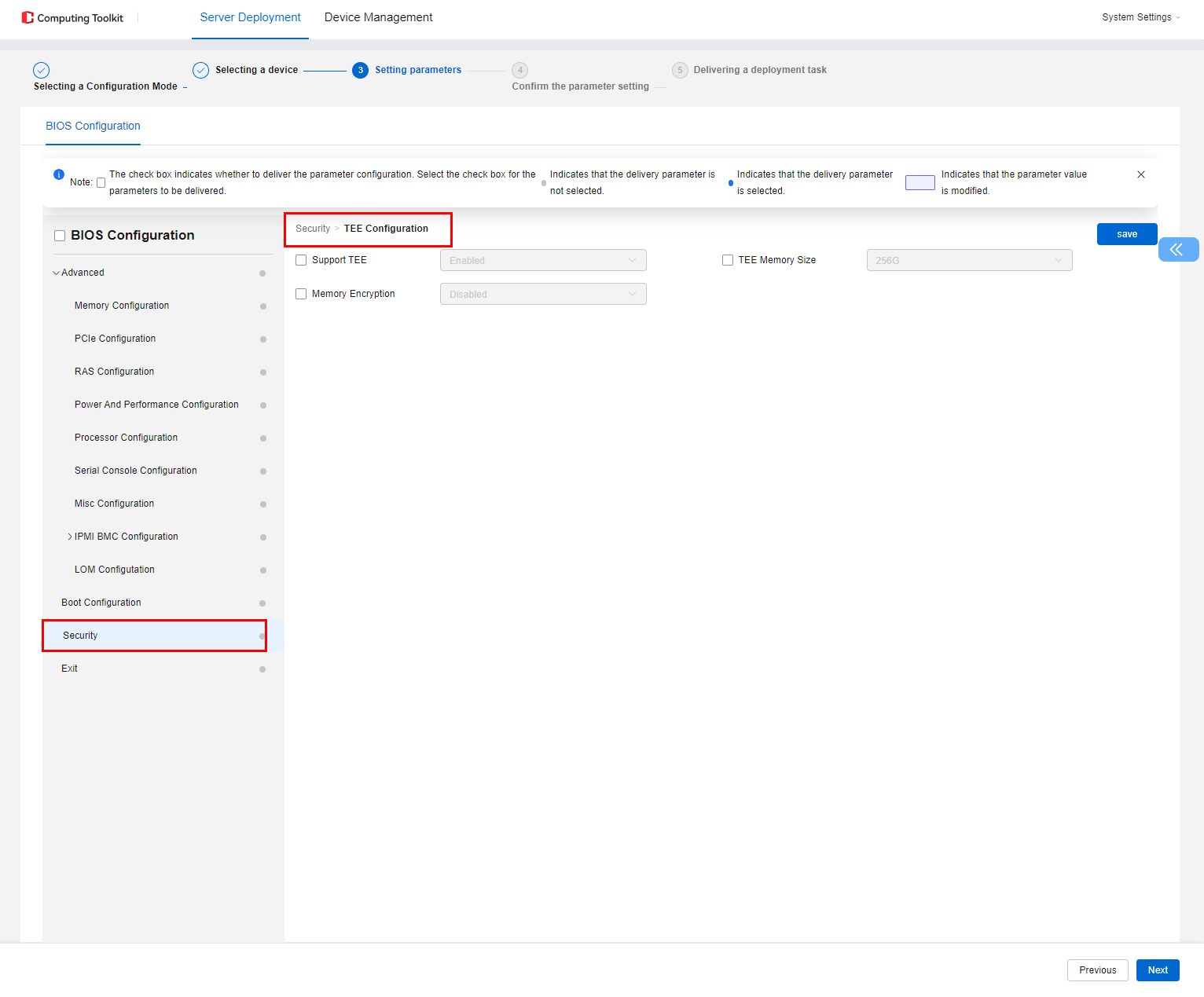
- Choose Security > TEE Configuration, modify TEE parameters as required, and click Next.
- Select the corresponding device and click Deploy. When prompted, confirm the information.
- Follow the tool prompts to power on or off the server and apply the TEE configuration.
Parent topic: Feature Guide