cVM Trustlist on OpenStack
This section explains the cVM trustlist (supported features) and blocklist (restricted features) in OpenStack.
|
Trustlist |
|
|---|---|
|
Blocklist |
|

As OpenStack does not support vCPU hot-swap, memory hot-swap, or memory QoS, it is unnecessary to mask these capabilities.
Creating, Starting, Forcibly Stopping, and Deleting cVMs
- Create a flavor for the cVM.
openstack flavor create cca-flavor --vcpus 4 --ram 8192 --disk 50 \
--property trait:HW_CPU_AARCH64_HISI_VIRTCCA=required \
--property sw:qemu_cmdline="tmm-guest,id=tmm0,num-pmu-counters=1" \
--property hw:mem_secure=true
You can add the --property sw:swiotlb='${swiotlb_mb}' setting to specify the SWIOTLB size of a cVM. This setting indicates only the unencrypted memory resource occupied by a cVM on OpenStack, and does not affect the unencrypted memory size occupied by the cVM. The value of ${swiotlb_mb} must be greater than 0 and aligned with 64 MB. If this parameter is not added, it is defaulted to 128 MB.
openstack flavor create cca-flavor --vcpus 4 --ram 8192 --disk 50 \ --property trait:HW_CPU_AARCH64_HISI_VIRTCCA=required \ --property sw:swiotlb='${swiotlb_mb}' --property sw:qemu_cmdline="tmm-guest,id=tmm0,num-pmu-counters=1" \ --property hw:mem_secure=true - Create a cVM.
openstack server create --image openEuler-image --flavor cca-flavor --network public-network cca-server
- Forcibly stop the cVM.
openstack server stop cca-server
- Start the cVM.
openstack server start cca-server
- Delete the cVM.
openstack server delete cca-server
Configuring vCPU Pinning and NUMA Topologies for cVMs
- Modify the /etc/nova/nova.conf file of a compute node to set the CPU pinning range of the compute node.
[compute]
cpu_dedicated_set = "0-63"
cpu_shared_set = "64-127"
- If cpu_dedicated_set is not configured, OpenStack cannot deploy pinned VMs.
- If only cpu_dedicated_set is configured, OpenStack permits the deployment of pinned VMs exclusively within the specified range, while unpinned VMs cannot be deployed.
- If both cpu_dedicated_set and cpu_shared_set are configured, OpenStack can deploy both pinned and unpinned VMs. Pinned VMs select CPUs from cpu_dedicated_set, while unpinned VMs select CPUs from cpu_shared_set.
- Modify the /etc/nova/nova.conf file of the controller node, configure filter_scheduler, and add NUMATopologyFilter to the enabled_filters option.
[filter_scheduler]
enabled_filters = ...,NUMATopologyFilter
available_filters = nova.scheduler.filters.all_filters
- Create a flavor with CPU pinning and NUMA topology attributes. In this example, a cVM with four cores and four NUMA nodes is created. Each NUMA node is allocated 2048 MB memory and bound to a CPU.
openstack flavor create cca-numa-flavor --vcpus 4 --ram 8192 --disk 50 \
--property hw:numa_nodes='4' \
--property hw:numa_mem.0=2048 \
--property hw:numa_mem.1=2048 \
--property hw:numa_mem.2=2048 \
--property hw:numa_mem.3=2048 \
--property hw:numa_cpus.0="0" \
--property hw:numa_cpus.1="1" \
--property hw:numa_cpus.2="2" \
--property hw:numa_cpus.3="3" \
--property hw:cpu_policy='dedicated' \
--property trait:HW_CPU_AARCH64_HISI_VIRTCCA=required \
--property sw:qemu_cmdline="tmm-guest,id=tmm0,num-pmu-counters=1" \
--property hw:mem_secure=true
CPU pinning and NUMA configuration must work together. Otherwise, VM creation will fail with an error.
- Use the flavor created in 3 to create a VM.
openstack server create --image openEuler-image --flavor cca-numa-flavor --network public-networkcca-num-server
Querying VM Information
- View information about all deployed VMs.
openstack server list
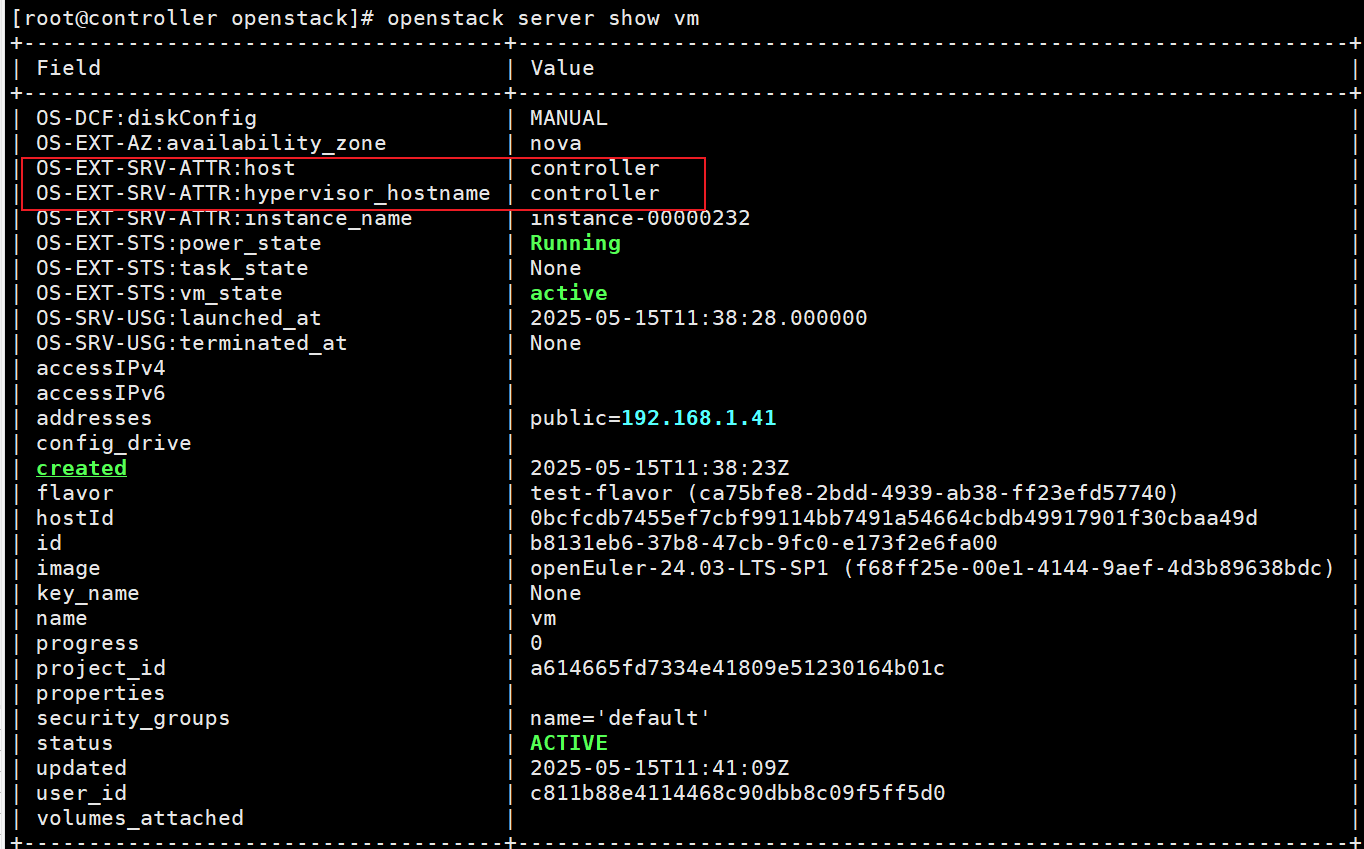
- View information about a specific VM.
openstack server show cca-server
- View secure memory information.
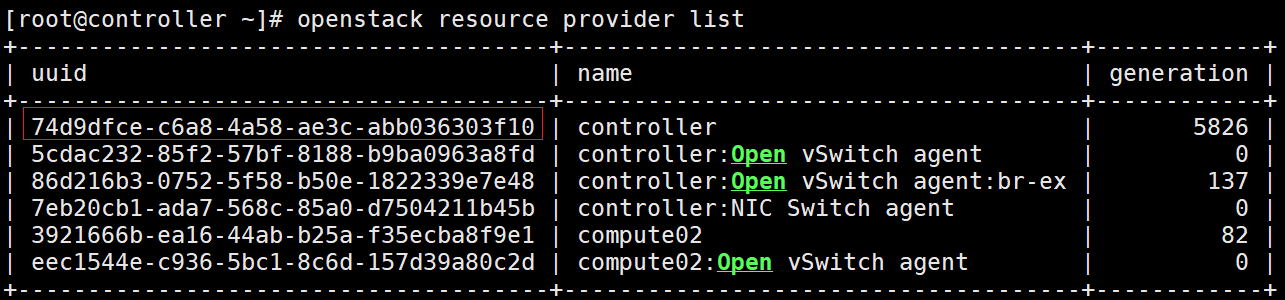
- Obtain the compute node ID.
openstack resource provider list
- Query the resource inventory based on the node ID, including secure memory.
openstack resource provider inventory list ${resource_provider_id}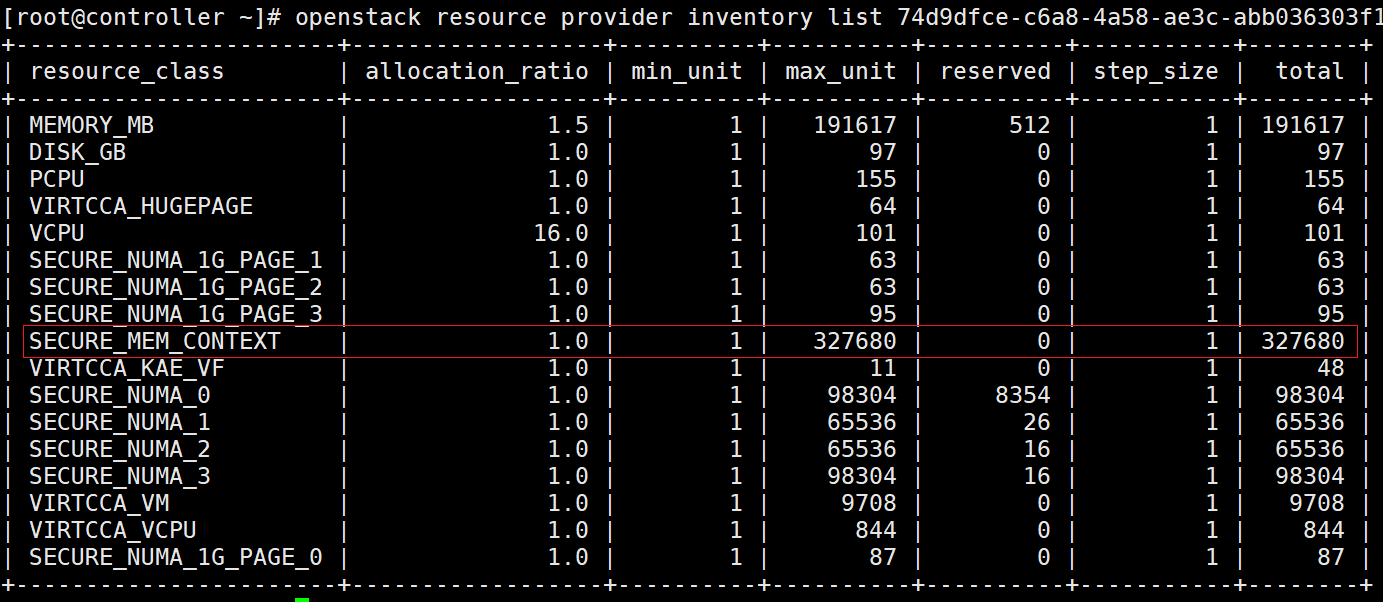
- View the resource usage. SECURE_NUMA_x does not provide real-time resource usage information.
openstack resource provider usage show ${resource_provider_id}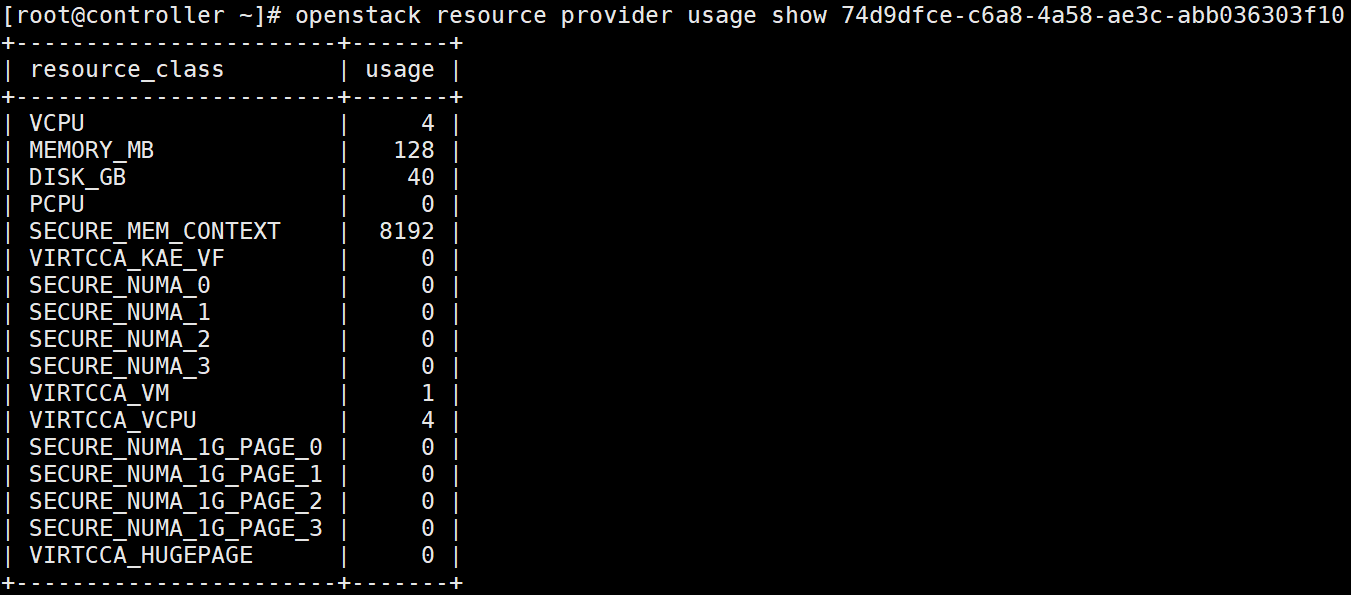
The secure NUMA memory resources are updated in real time based on the inventory table. Due to generation mismatches during concurrent updates, the mechanism may trigger refresh errors. This is normal behavior and does not affect actual resource updates.

- Obtain the compute node ID.
Managing Virtual Disk Drives
- Create an empty volume, whose size unit is GB. By default virtio-blk is used.
openstack volume create --size 5 ${volume_name} - View the ID of the empty volume.
openstack volume list

- When creating a VM, use volume id to specify the empty volume.
openstack server create --image openEuler-image \ --flavor cca-flavor \ --network public-network \ --block-device source_type=volume,disk_bus=virtio,uuid=${volume id} \volume-server - After deploying the VM instance, run the virsh command to access the VM. The name of the VM created on OpenStack is instance-xxx.
virsh list
virsh console instance-xxx
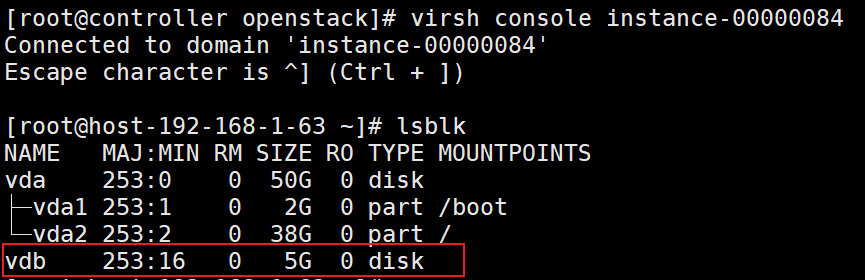
- After entering the user name and password, run the following command to view the created virtual disk drive:
lsblk
Before creating a VM, set the image attributes to enable SCSI.
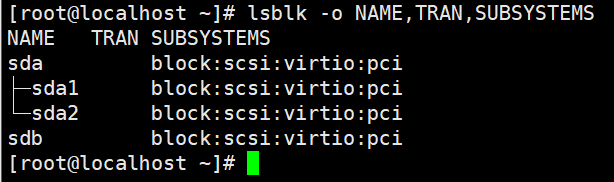
openstack image set ${image-id} --property hw_scsi_model=virtio-scsi --property hw_disk_bus='scsi'After logging in to the VM, run the following command to check whether SCSI has been enabled:
lsblk -o NAME,TRAN,SUBSYSTEMS
Managing the Virtual CD-ROM Drive
- Prepare an ISO file and upload it to OpenStack.
openstack image create ${iso-image-name} --file ./your-image.iso --disk-format iso - Create a storage volume based on the ISO file. The created volume must be larger than the actual size of the ISO file.
openstack volume create --image ${iso-image-uuid} --size 1 ${iso-volume-name} - Mount the CD-ROM drive volume to the specified cVM instance.
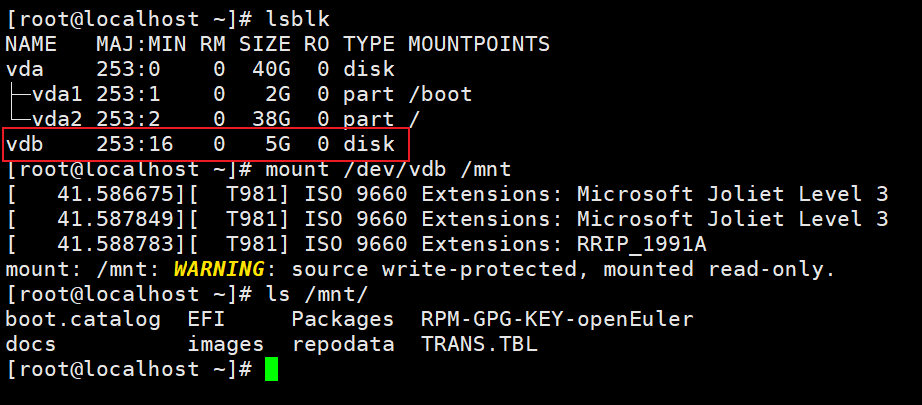
openstack server add volume ${cvm_name} ${iso-volume-name} - After logging in to the VM using the virsh command, you can run the mount command to view the ISO file content.
lsblk
mount /dev/vdb /mnt
ls /mnt
If a mount error is reported stating "libvirt.libvirtError: internal error: unable to execute QEMU command 'blockdev-add': aio=native was specified, but is not supported in this build", AIO is not enabled during QEMU compilation.

Install the libaio-devel library in the QEMU compilation environment and recompile QEMU. QEMU supports aio by default.
yum install libaio-devel -y
Configuring a NIC for a cVM
- Create a cVM by following instructions in Environment Deployment.
- Configure the IP address.
Log in to the VM by running virsh console and check whether the IP address has been automatically configured for DHCP. If the IP address has not been configured, perform the following operations to manually configure it:
- Open the /etc/sysconfig/network-scripts/ifcfg-eth0 file.
vim /etc/sysconfig/network-scripts/ifcfg-eth0
- Press i to enter the insert mode and modify the configuration file as follows:
TYPE=Ethernet
BOOTPROTO=static
DEFROUTE=yes
DEVICE=eth0
ONBOOT=yes
IPADDR=xx.xx.xx.xx
PREFIX=xx
STP=yes
- Press Esc to exit the insert mode. Type :wq! and press Enter to save the file and exit.
- Open the /etc/sysconfig/network-scripts/ifcfg-eth0 file.
- Configure an IP address for the external network bridge br-ex of OpenStack.
ip addr add xx.xx.xx.xx/xx dev br-ex
ip link set br-ex up
- Add security group rules.
- Display the security group list.
openstack security group list
- View the default security group rule.
openstack security group rule list default
- Configure the security group rule.
openstack security group rule create --proto icmp --remote-ip xx.xx.xx.xx/xx default
openstack security group rule create --proto tcp --dst-port 22 --remote-ip xx.xx.xx.xx/xx default
To allow any IP address to access the VM through br-ex, set --remote-ip to 0.0.0.0/0.
- Display the security group list.
Cold Migrating a cVM
- Configure the certificate.
OpenStack uses the scp command for migration. Therefore, you need to configure a certificate for communication between compute nodes. The node where the VM instance is originally deployed is referred to as the source node, and the node to which it is migrated is referred to as the target node.
- Perform the following operations on the source node.
- Perform the following operations on the target node.
Write the public key of the source node obtained from 1.a.ii to the authorized_keys file to ensure that the nova user has the read permission on the file.
cd /var/lib/nova/.ssh
vim authorized_keys
chown nova:nova /var/lib/nova/.ssh/*
- Perform the following operations on the source node.
Run the ssh command to log in to the target node as the nova user. If the login is successful without a password, the certificate configuration has taken effect.
sudo -u nova ssh -o BatchMode=yes nova@{target_node_ip}
If "Host key verification failed" is displayed, run the following command to add the host key of the target node to the known_hosts file of the nova user on the source node:
sudo -u nova ssh-keyscan -H {target_ip} >> /var/lib/nova/.ssh/known_hosts
- Perform the migration.
- Run the migration command on the controller node. The Host parameter specifies the target node name.
openstack server migrate --host ${target_node_name} ${cvm_name} --os-compute-api-version 2.56 - Wait a few minutes and manually confirm that the migration has completed.
openstack server resize confirm ${cvm_name}
- If the following information is displayed after the confirmation command is executed, the VM migration status has not been updated. Run the confirmation command later.

- If a data volume is attached to a VM, the cold migration will fail.
- If a cold migration fails, run OpenStack commands to delete the VM. The residual domain definition file can still be displayed by running the virsh command. You need to manually run the following command to delete the file:
virsh undefine instance-xxx
- Run the migration command on the controller node. The Host parameter specifies the target node name.
cVM Evacuation
- The evacuation command can be executed only when the VM node fails. To facilitate verification, run the following command to set the node service to down:
openstack compute service set --down ${node_name} nova-compute --os-compute-api-version 2.11 - Run the evacuation command.
openstack server evacuate ${cvm_name} - After the evacuation is complete, check the VM details. You can see that the VM instance is running properly on another node.
openstack server show ${cvm_name}