Usage Example
This section briefly demonstrates the complete process of using the Kunpeng Domain Tuner, including generating a workspace (using the Spark scenario as an example), accessing the one-click configuration interface, setting parameter values, running the performance test script, performing automatic parameter tuning, and restoring the environment.
Prerequisites
The Kunpeng Domain Tuner is installed in /home/devkit-kdt-x.x.x-Linux-aarch64.
Procedure
- Generate a Spark workspace.
1./kdt -g spark -o /home/test

Specify Spark as the scenario for workspace generation and generate the workspace in the /home/test directory.
(Optional) Enter the required information in the interactive interface based on the returned information.
- The workspace has encryption configurations. If you enter an encryption password, sensitive dependency parameters, such as BMC_PASSWD, are saved. You do not need to enter these parameters again when accessing the one-click configuration interface.
- OmniOperator configurations are available. OMNIOP_DEPLOY_MODE, OMNIOP_ROOT_DIR, OMNIOP_SPARK_CONF_FILE, OMNI_RUNTIME_PACKAGE_LOCATION, OMNIOP_PACKAGE_LOCATION, and OMNIOP_DEPENDENCY_LIB_PACKAGE_LOCATION are Omni-related configuration items.
- BIOS configurations are available. BMC_IP, BMC_USER, and BMC_PASSWD (optional, but required for the tool to configure BIOS settings later) indicate the BMC IP address, username, and password. You can enter these values either here or later in the interface.
- Spark configurations are available. SPARK_CONFIG_FILE specifies the path to the Spark application configuration file (for example, /opt/tools/installed/spark-3.3.1-bin-hadoop3/conf/spark-defaults.conf).
- The workspace path is /home/test. The tool uses this path to access the corresponding workspace for subsequent tuning.
Please enter workspace password to encrypt sensitive data (leave empty for none):
Please enter password again:
Enter the following configuration dependencies to set the baseline:
=== Host: localhost ===
[Omni] OMNIOP_DEPLOY_MODE (Optional: the OmniOperator deployment mode. Optional value is extension or gluten. Default value: extension):
[Omni] OMNIOP_ROOT_DIR (Optional: root directory for installing the OmniOperator. Default value: /opt/kdt):
[Omni] OMNIOP_SPARK_CONF_FILE (Optional: absolute path of the Spark configuration file. Default value: /usr/local/spark/conf/spark-defaults.conf):/opt/tools/installed/spark-3.1.1-bin-hadoop3.2/conf/spark-defaults.conf
[Omni] OMNI_RUNTIME_PACKAGE_LOCATION (Optional: absolute path of the OmniRuntime zip package (example: /home/BoostKit-omniruntime_1.9.0.zip).):
[Omni] OMNIOP_PACKAGE_LOCATION (Optional: absolute path of the OmniOperator zip package (example: /home/boostkit-omniop-spark-3.1.1-2.0.0-aarch64.zip).):
[Omni] OMNIOP_DEPENDENCY_LIB_PACKAGE_LOCATION (Optional: absolute path of the OmniOperator dependency library zip package (example: /home/Dependency_library_openeuler20.03.zip).):
[bios] BMC_IP (ip of bmc): xx.xx.xx.xx
[bios] BMC_USER (user name of bmc): Administrator
[bios] BMC_PASSWD (password of bmc):
[spark, jvm] SPARK_CONFIG_FILE (full path of the Spark configuration file): /opt/tools/installed/spark-3.3.1-bin-hadoop3/conf/spark-defaults.conf
Getting the baseline... Please wait.
Generate workspace success. workspace path is /home/test
- Access the workspace.
./kdt -t /home/test
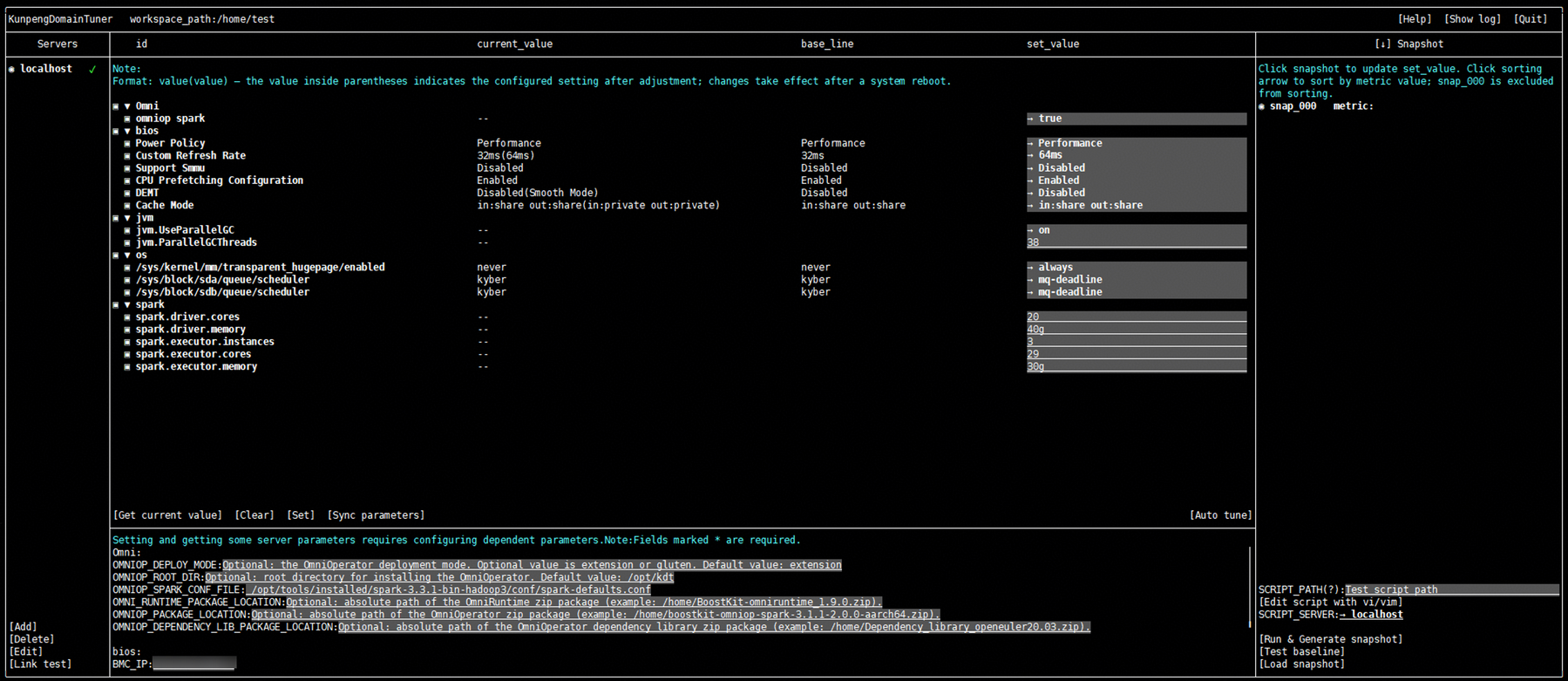
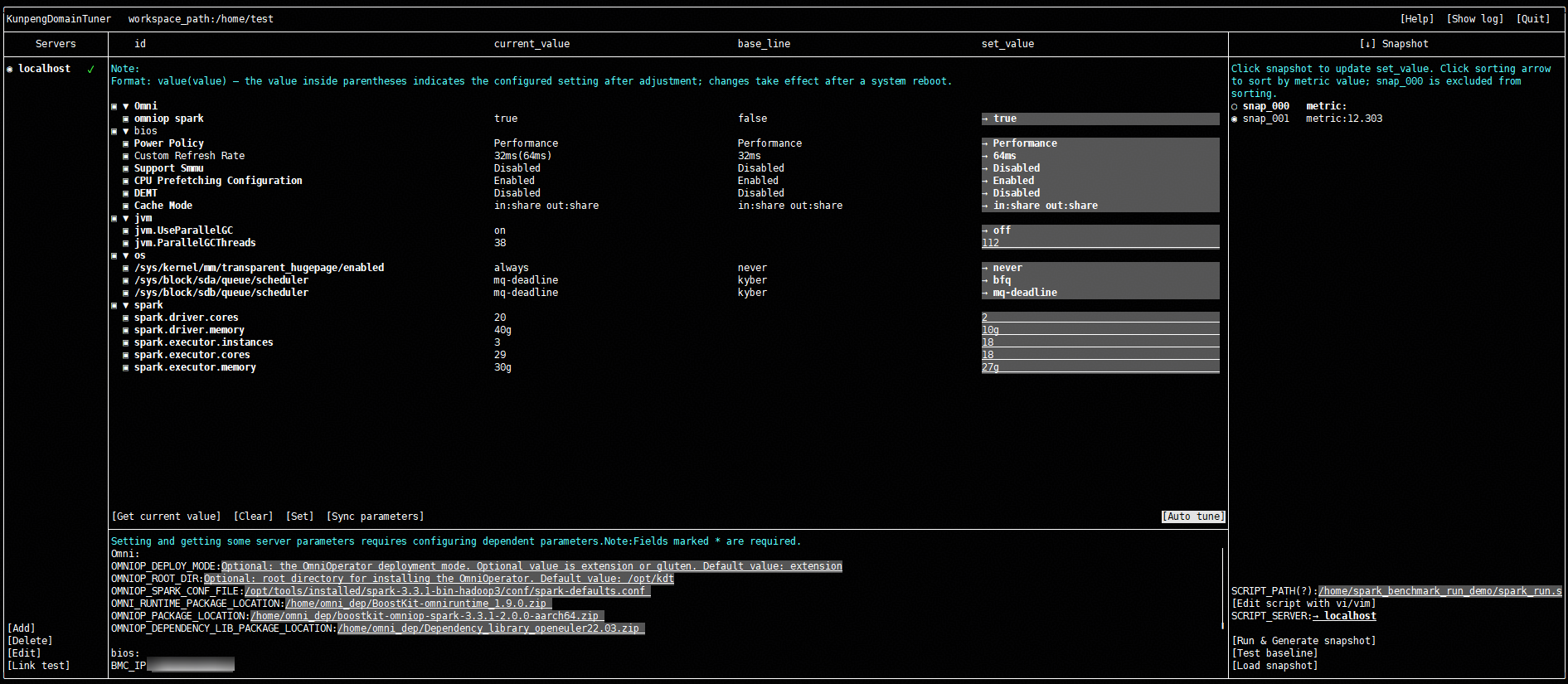
After executing the command, the one-click configuration interface is displayed. See Figure 1.
- Configure parameter values.
- (Optional) If you need to configure OmniOperator parameters, specify the related OmniOperator dependency paths at the bottom of the configuration editing area.
- Set OMNI_RUNTIME_PACKAGE_LOCATION to /home/omni_dep/BoostKit-omniruntime_1.9.0.zip, OMNIOP_PACKAGE_LOCATION to /home/omni_dep/boostkit-omniop-spark-3.3.1-2.0.0-aarch64.zip, and OMNIOP_DEPENDENCY_LIB_PACKAGE_LOCATION to /home/omni_dep/Dependency_library_openeuler22.03.zip. Retain the default values for other parameters. For details about how to download OmniOperator dependencies, see the OmniOperator Installation Guide.
- This example uses the recommended values. Click the Set button to apply the recommended values.
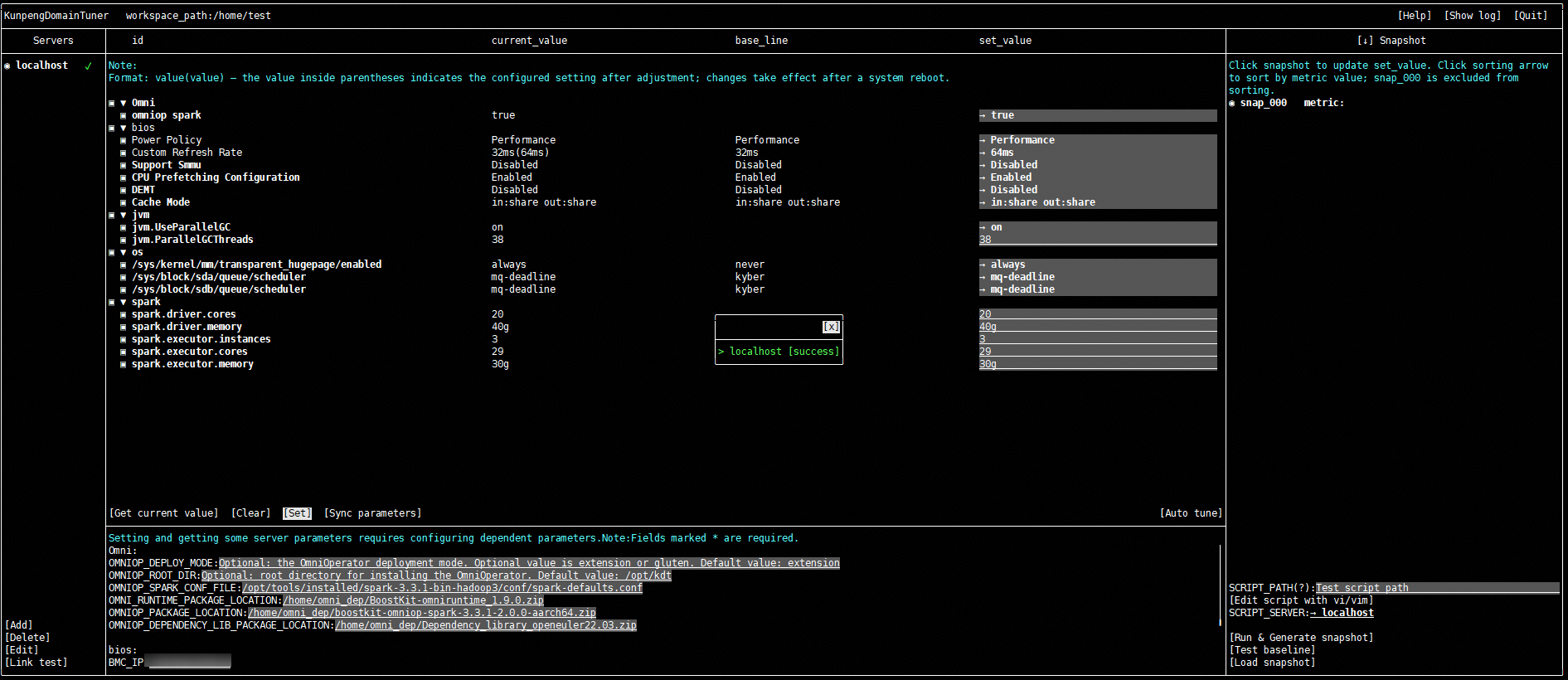
In the configuration editing area in the middle, the Kunpeng Domain Tuner provides recommended values for parameters (in the set_value column). To use the recommended values directly, click the Set button to apply them. To use other values, modify the values in the set_value column and click the Set button to apply the changes.
Figure 2 Making recommended values take effect
- (Optional) If you need to configure OmniOperator parameters, specify the related OmniOperator dependency paths at the bottom of the configuration editing area.
- Add the performance test script file and run it.
In SCRIPT_PATH in the snapshot area on the right, enter the performance test script file path (/home/spark_benchmark_run_demo/spark_run.sh). Click the Run & Generate snapshot button to run the script file and generate a snapshot.
Figure 3 Pressure test result
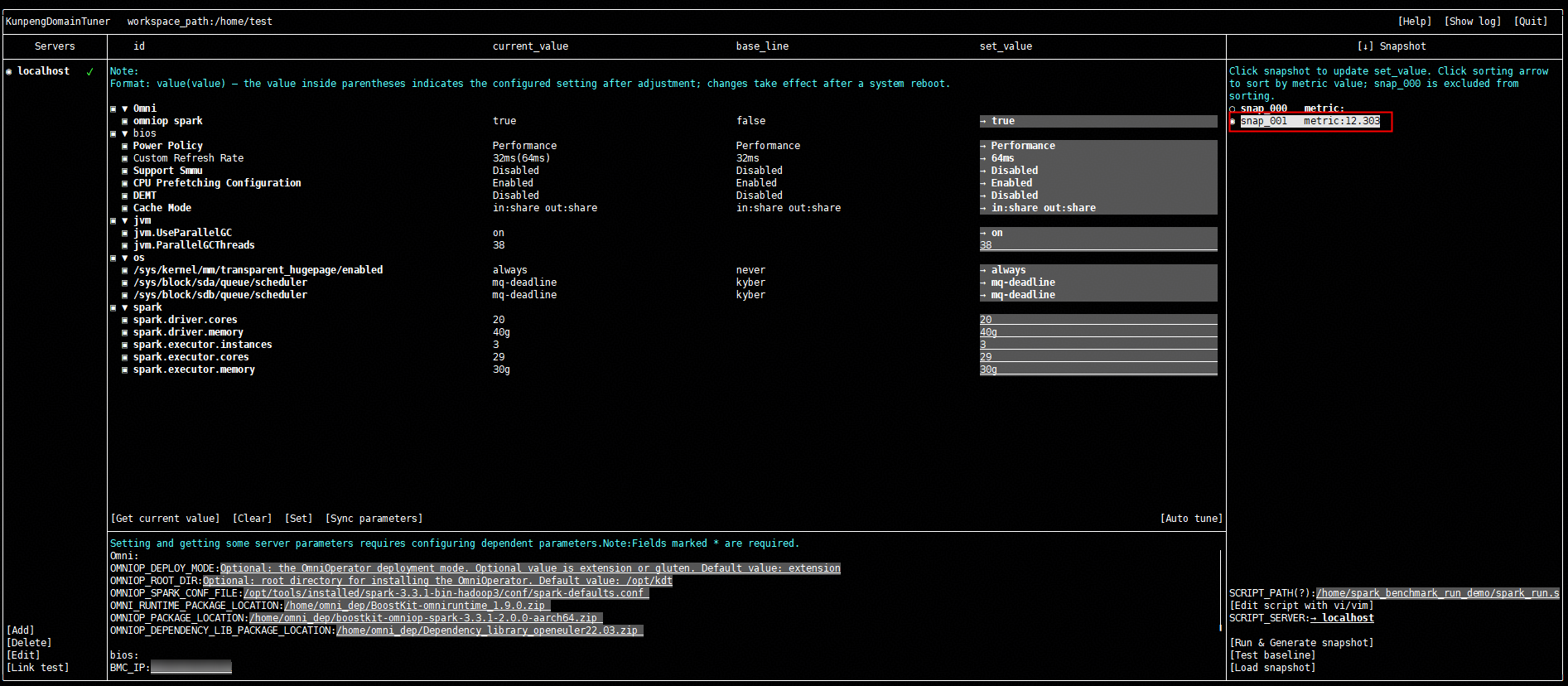
The performance test result of the recommended values in the generated snapshot is 12.303. You can further use the built-in AI algorithm of the tool to optimize parameters and obtain a better parameter combination and recommended values.
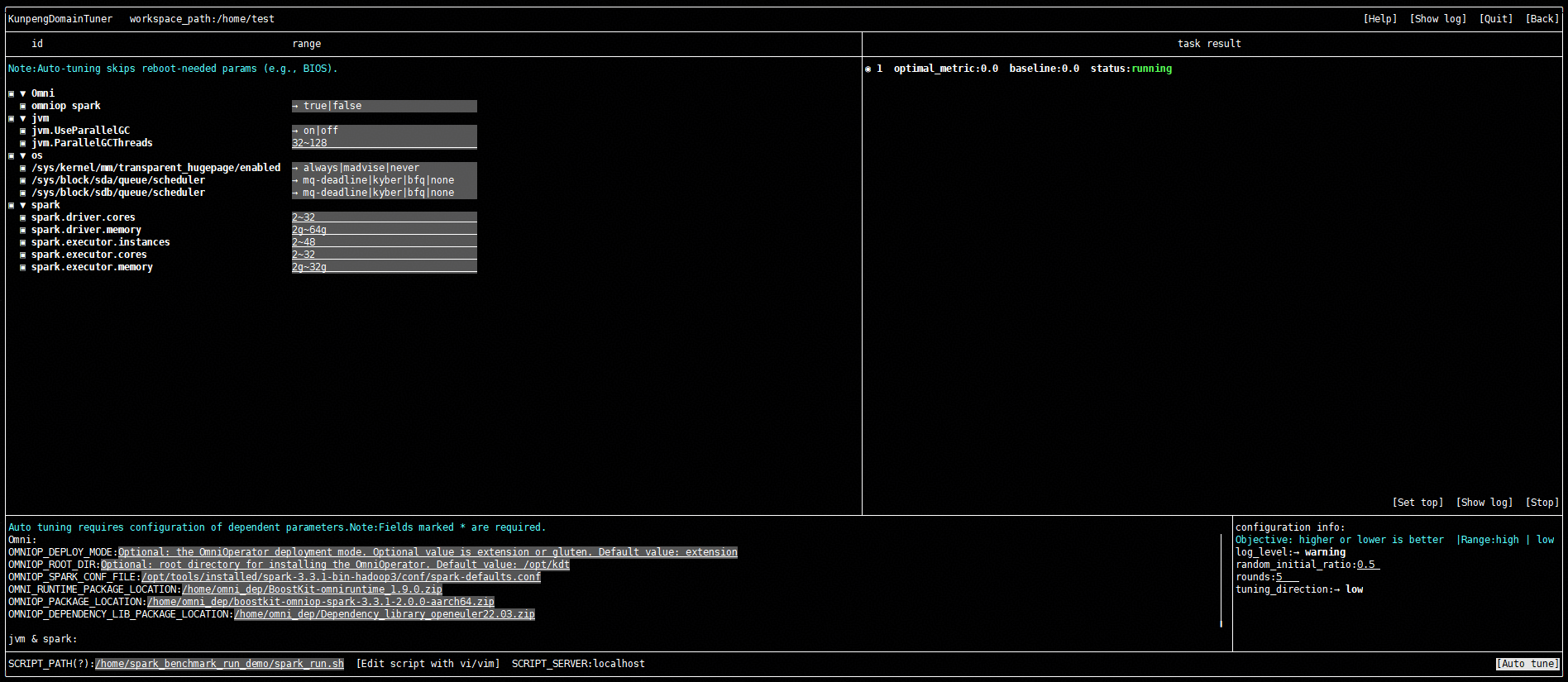
- Click the Auto tune button to access the automatic parameter tuning interface. In the tuning task configuration area, set the number of tuning rounds to 5 and the tuning direction to low. After the configuration is complete, click the Auto tune button to start automatic tuning.Figure 4 Starting automatic tuning
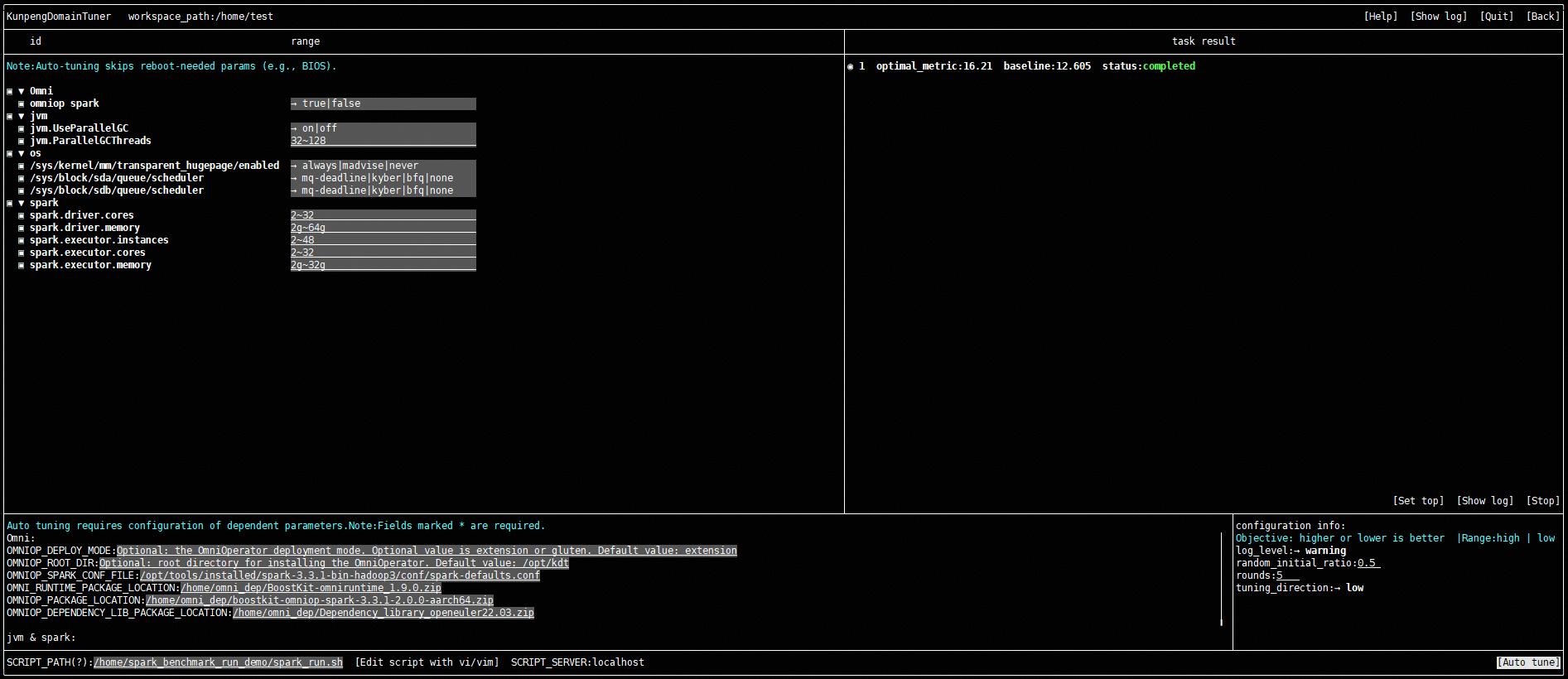
 After the tuning process is complete, you can view the optimal value (16.21) in the tuning task area. You can increase the number of tuning rounds to achieve better results.Figure 5 Tuning completed
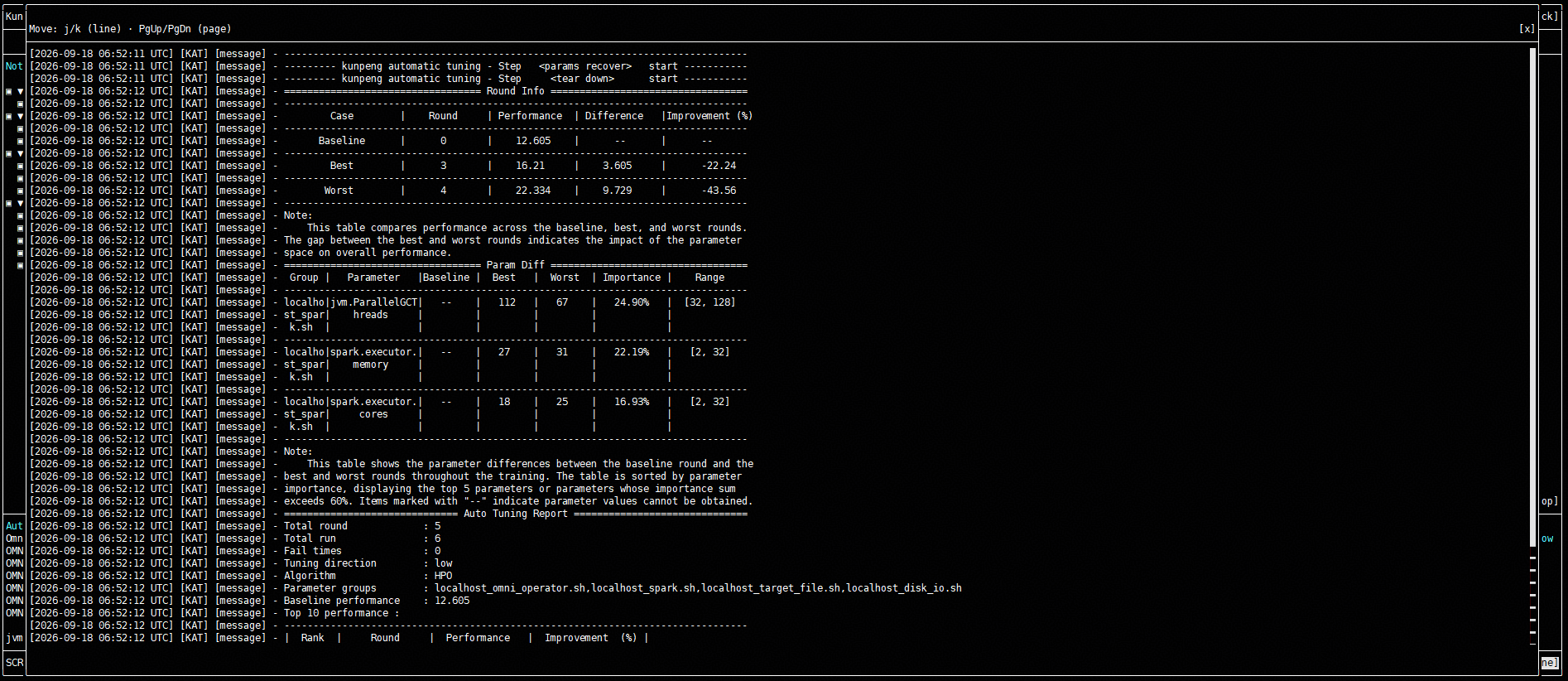
 Click Show log to view the automatic tuning result.Figure 6 Tuning log
- Click the Set top button to apply the optimal parameter values from the best tuning round to the corresponding parameters in the one-click configuration interface.Figure 7 Optimal parameter values
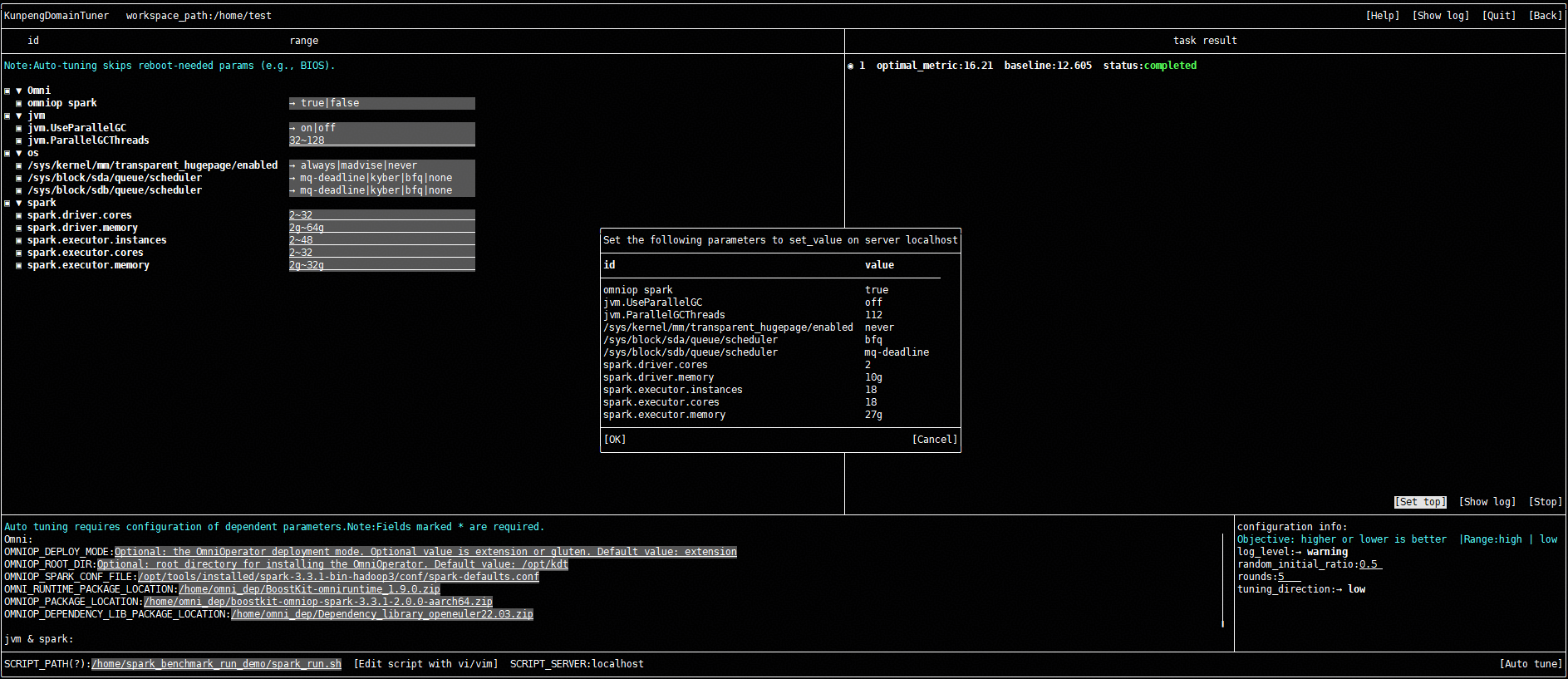 Figure 8 Set top
For subsequent steps, see 3.b to apply the optimal parameter values from the best tuning round.
- (Optional) Restore the default values and clear some parameter configurations, temporary files, and other data.
- In the snapshot area on the right, select snap_000 and click the Load snapshot button. In the dialog box that is displayed, click OK.
- Click Set. In the dialog box that is displayed, click OK to restore the parameter values to their default values.
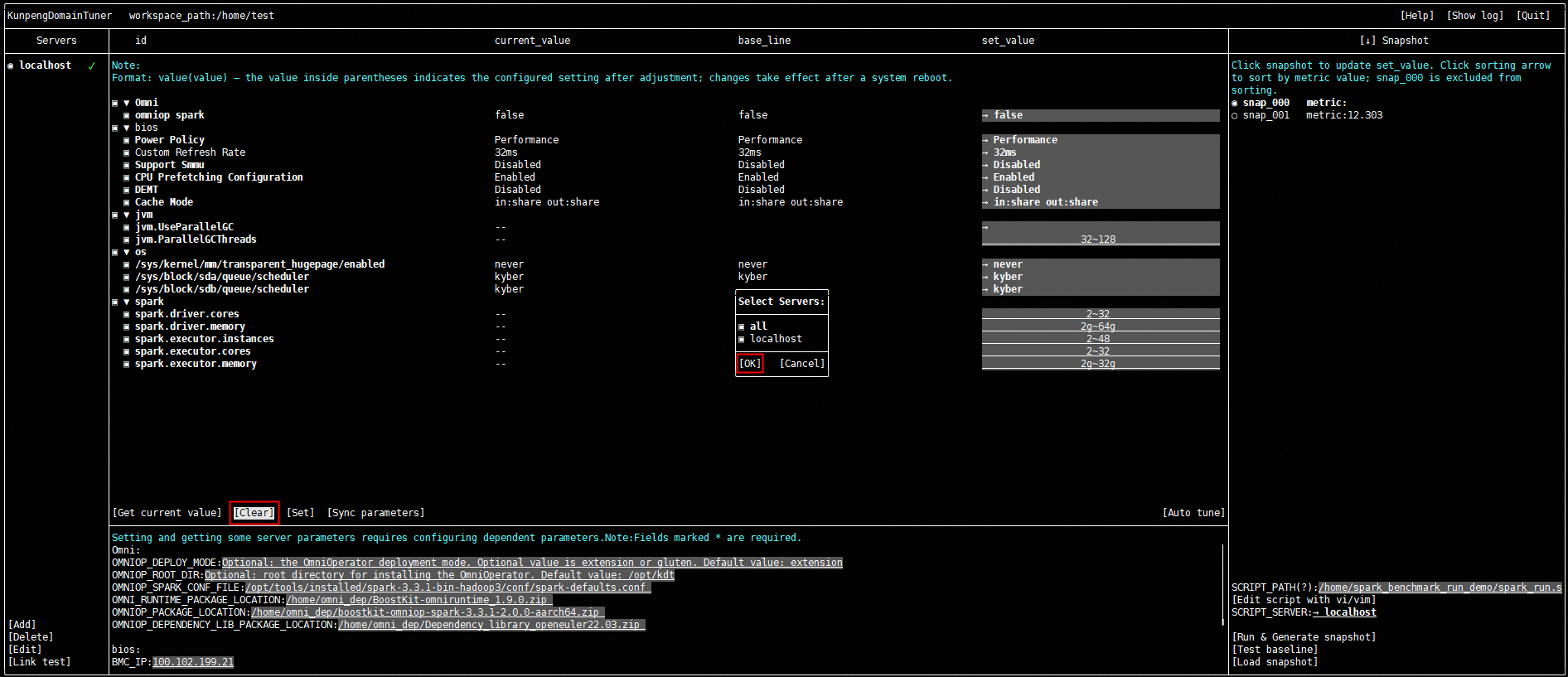
- Click the Clear button. In the dialog box that is displayed, click OK to clear some parameter configurations, temporary files, and other data.
Figure 9 Load snapshot
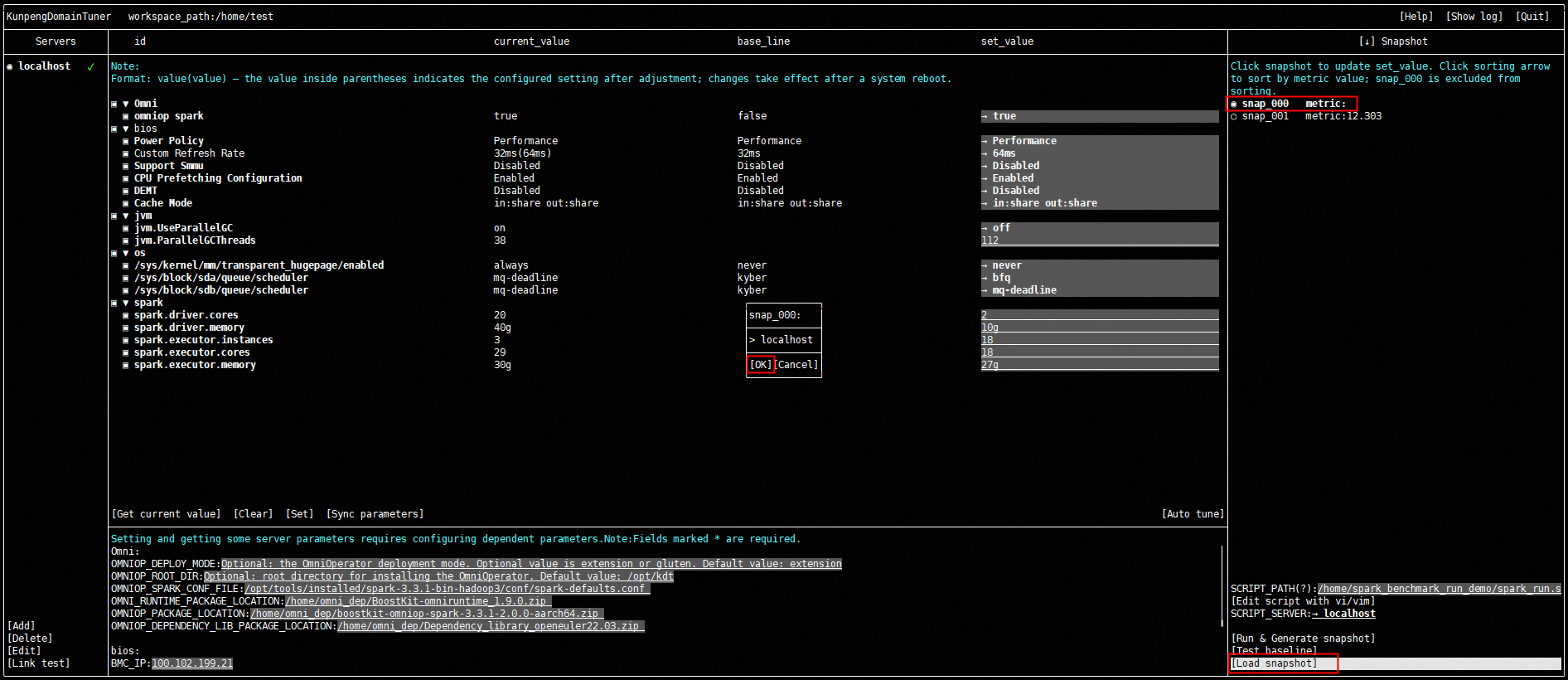 Figure 10 Set
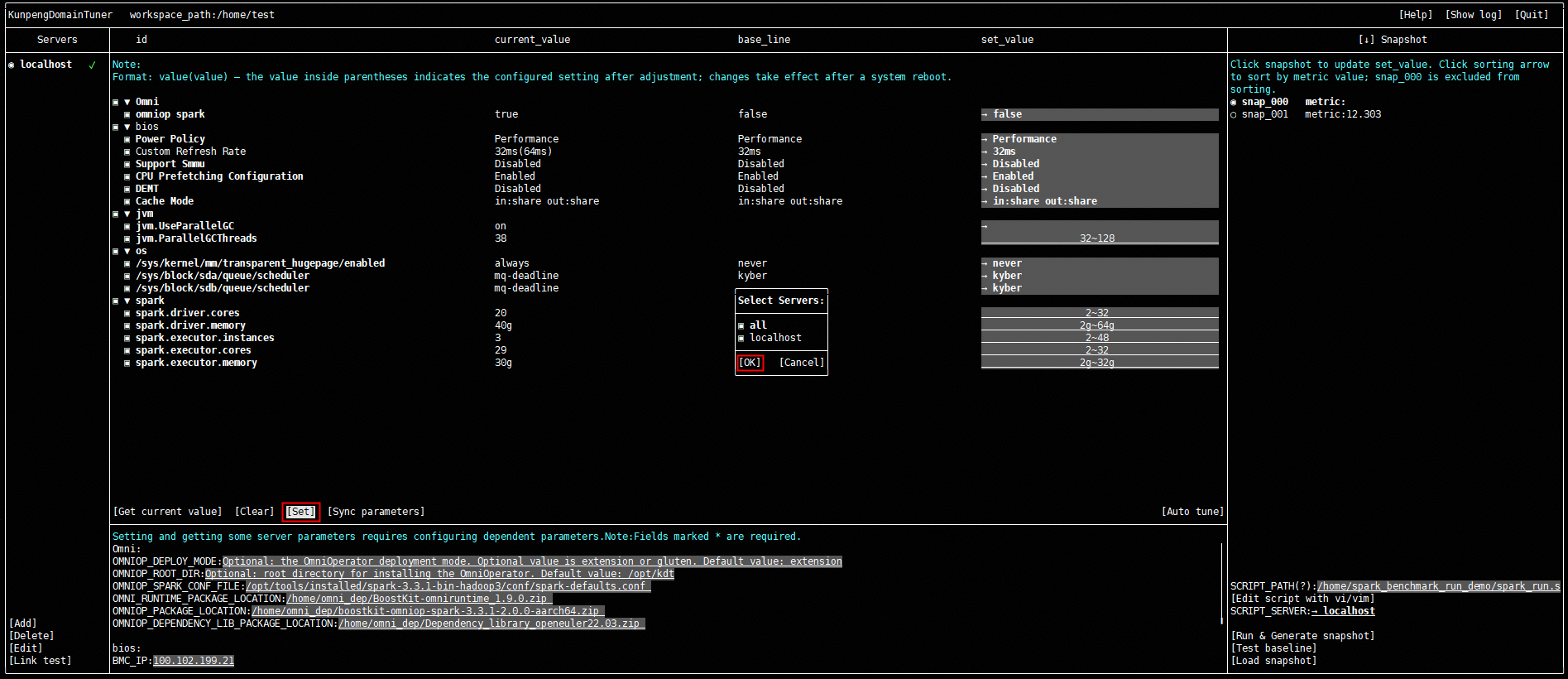 Figure 11 Clear