Importing a TEE License File
The TEE feature is controlled by a license. Before using the feature, ensure the license file has been imported.
A TEE license file can be imported using the iBMC WebUI or the Computing ToolKit.
- To import the license file for a single server, see Importing a License File Using the iBMC.
- If you want to batch import the license file for multiple servers, see Batch Importing a License File Using the Computing ToolKit.
Importing a License File Using the iBMC
- Log in to the iBMC and choose > .
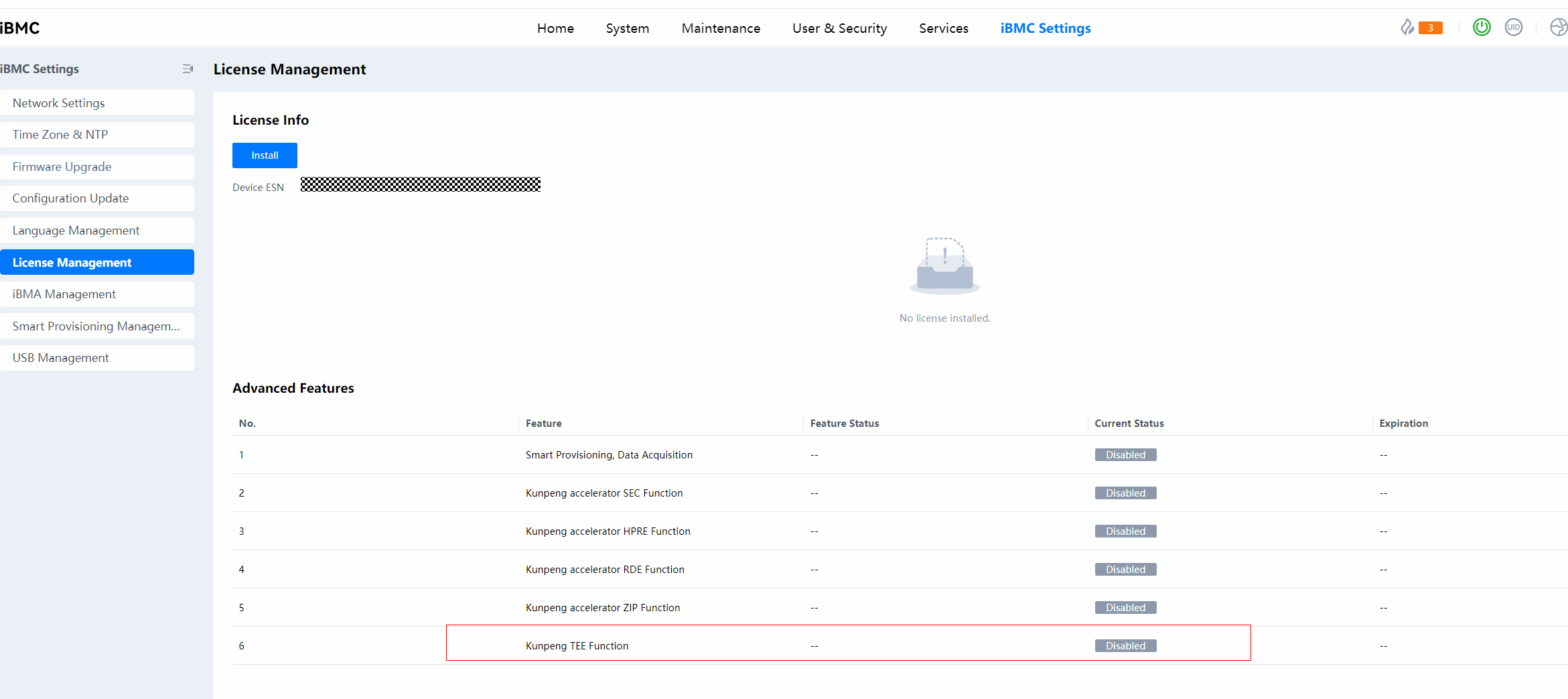
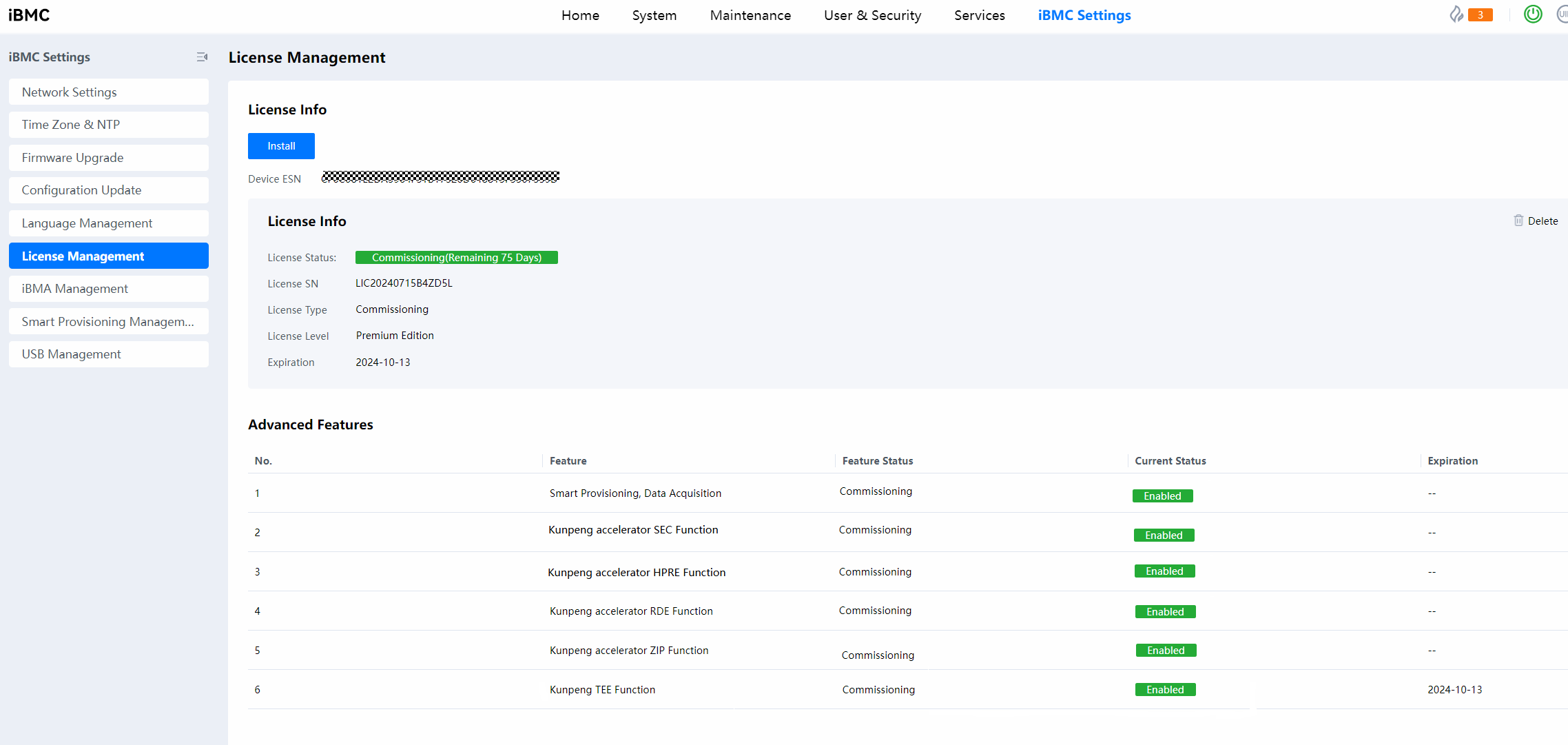
If no license file has been imported, Kunpeng TEE Function is in the Disabled state.
- Click Install and select the obtained TEE license file.
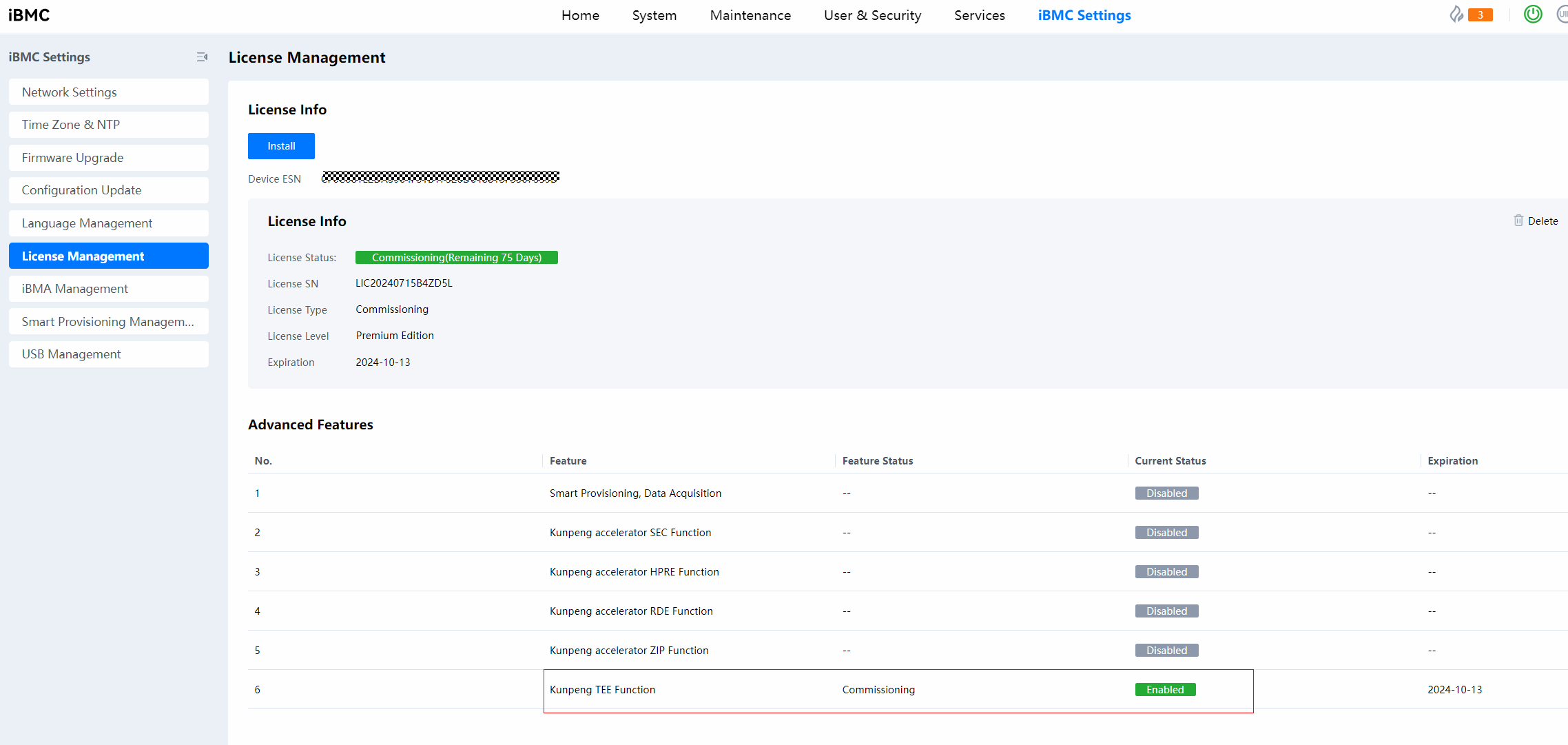
After the TEE license file is imported, Kunpeng TEE Function enters the Enabled state and the expiration date is displayed.
Batch Importing a License File Using the Computing ToolKit
- Before importing a license file, install the Computing ToolKit by following instructions in Installing the Computing ToolKit. After the installation is complete, perform the following steps to import the license file.
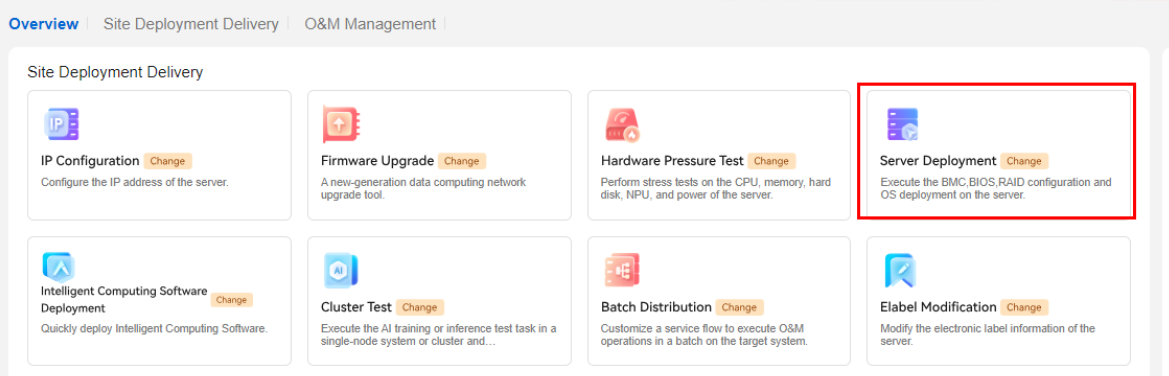
- Click the Server Deployment function module of the Computing ToolKit.
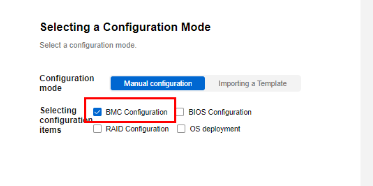
- Select BMC Configuration and click Next.
- Select the servers whose TEE parameters need to be modified and then click Obtaining Device Information.
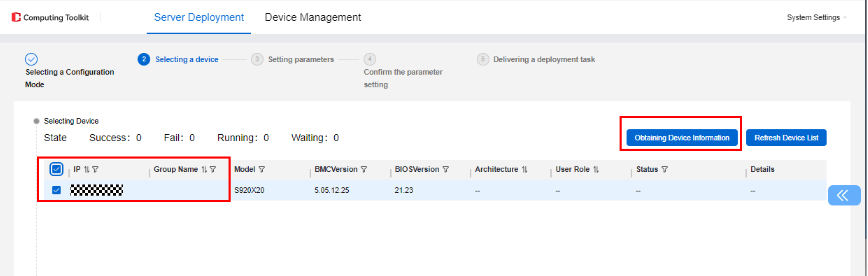

If the target servers cannot be selected, add the BMC devices on the Device Management page.
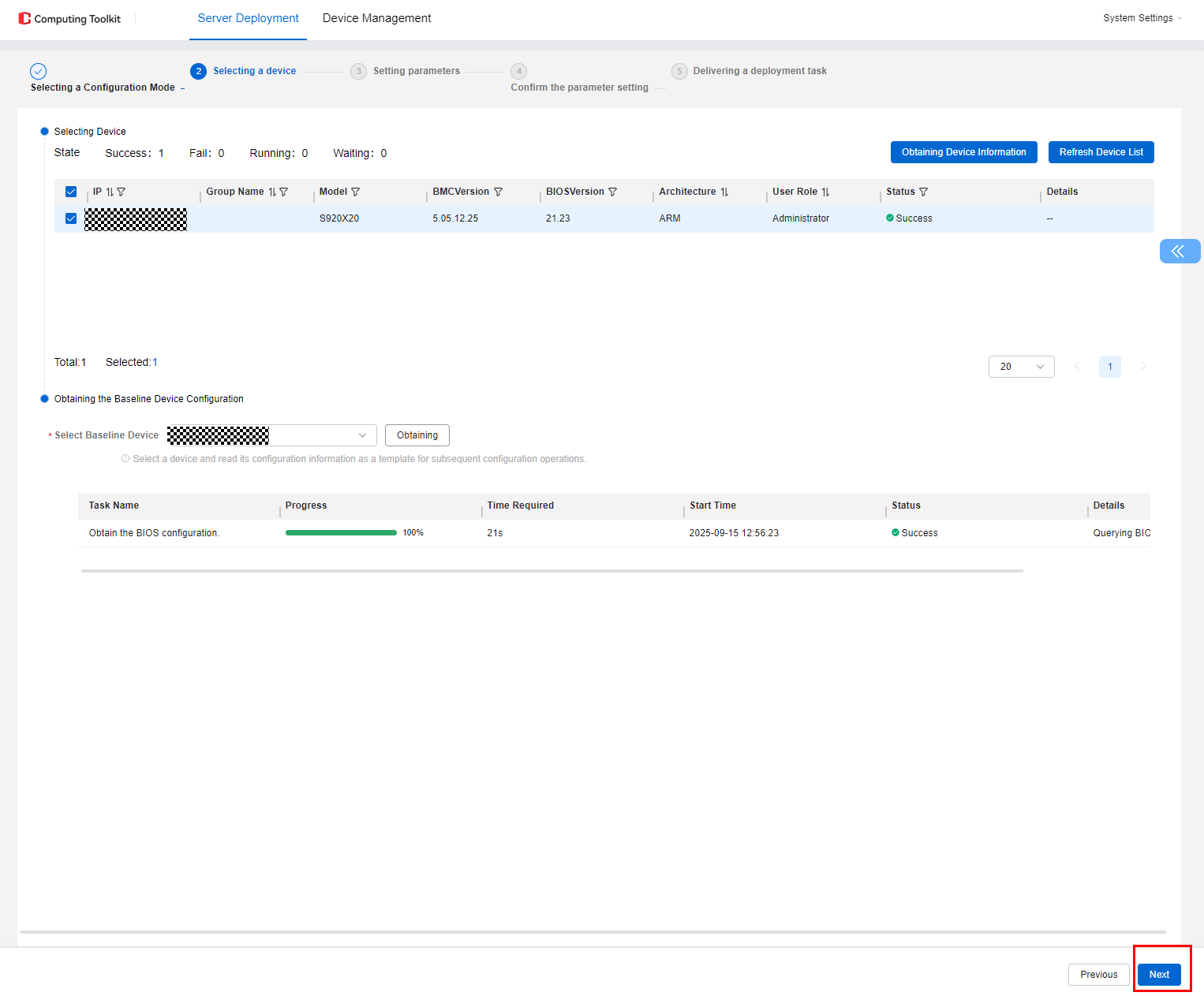
- Select a reference device and click Obtaining. After the BMC configuration is obtained, click Next.
- Select iBMC License, Import License, and Add File to upload the TEE license file. Then click Save.
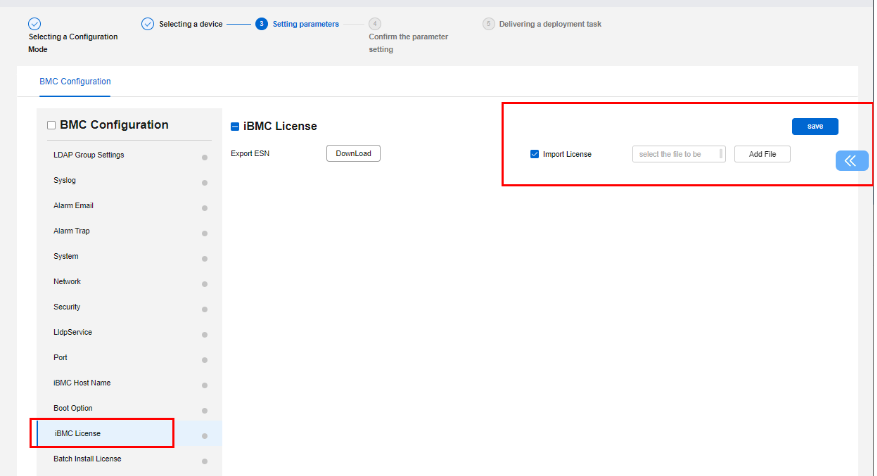
Upload the license file in .zip format.
- Click Next.
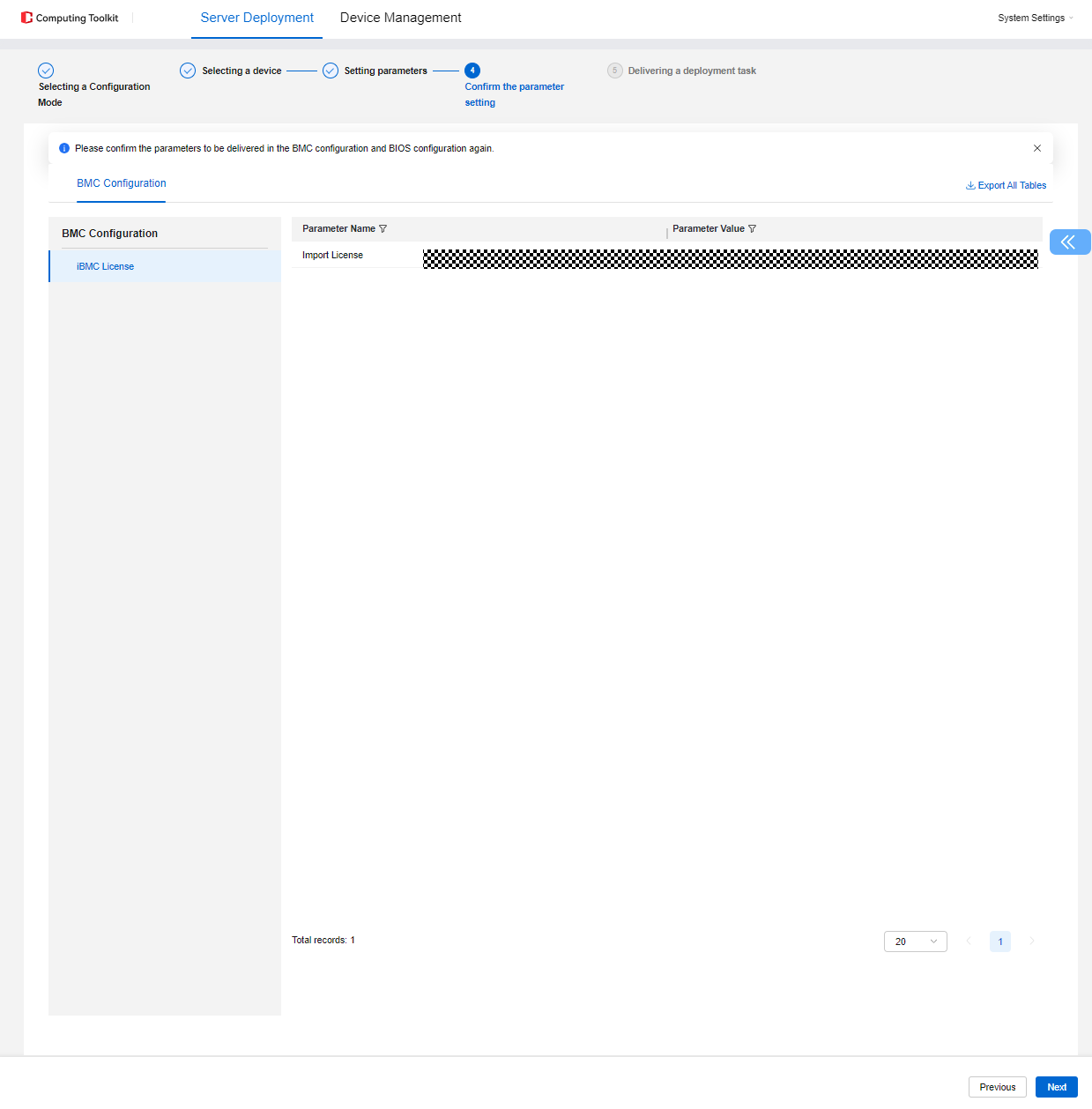
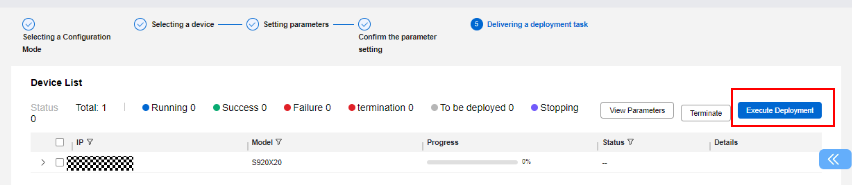
- Click Execute Deployment to import the license file.
- Log in to the iBMC WebUI of the target server and choose iBMC Settings > License Management to check the imported license file.
Parent topic: Software Deployment